
Raw capture — raw/copyparty.md
url: https://github.com/9001/copyparty date_fetched: 2026-08-25
turn almost any device into a file server with resumable uploads/downloads using any web browser
👉 Get started! or visit the read-only demo server 👀 running on a nuc in my basement
📷 screenshots: browser // upload // unpost // thumbnails // search // fsearch // zip-DL // md-viewer
🎬 videos: upload // cli-upload // race-the-beam // 👉 feature-showcase (youtube)
built in Norway 🇳🇴 with contributions from not-norway
g or 田 to toggle grid-view instead of the file listingzip or tar filesF2 to bring up the rename UI--ftp 3921--tftp 3969.hist/up2k.db, default) or somewhere else-e2t to index tags on uploadpacman -S copyparty (in arch linux extra)emerge www-servers/copyparty::guru (in ::guru)brew install copyparty ffmpegnix profile install github:9001/copyparty8 GiB/s download, 1 GiB/s uploadjust run copyparty-sfx.py -- that's it! 🎉
ℹ️ the sfx is a self-extractor which unpacks an embedded
tar.gzinto$TEMP-- if this looks too scary, you can use the zipapp which has slightly worse performance
python3 -m pip install --user -U copypartyuv tool run copypartyenable thumbnails (images/audio/video), media indexing, and audio transcoding by installing some recommended deps:
apk add py3-pillow ffmpegapt install --no-install-recommends python3-pil ffmpegdnf install python3-pillow ffmpeg --allowerasingpkg install py311-sqlite3 py311-pillow ffmpegport install py-Pillow ffmpegbrew install pillow ffmpegpython -m pip install --user -U Pillowwinget or Microsoft Store (it breaks $PATH)Pillow and only needs ffmpeg for mediatags/videothumbsrunning copyparty without arguments (for example doubleclicking it on Windows) will give everyone read/write access to the current folder; you may want accounts and volumes
or see some usage examples for inspiration, or the complete windows example
some recommended options:
* -e2dsa enables general file indexing
* -e2ts enables audio metadata indexing (needs either FFprobe or Mutagen)
* -v /mnt/music:/music:r:rw,foo -a foo:bar shares /mnt/music as /music, readable by anyone, and read-write for user foo, password bar
* replace :r:rw,foo with :r,foo to only make the folder readable by foo and nobody else
* see accounts and volumes (or --help-accounts) for the syntax and other permissions
other places to download copyparty from (non-github links):
make it accessible over the internet by starting a cloudflare quicktunnel like so:
first download cloudflared and then start the tunnel with cloudflared tunnel --url http://127.0.0.1:3923
as the tunnel starts, it will show a URL which you can share to let anyone browse your stash or upload files to you
but if you have a domain, then you probably want to skip the random autogenerated URL and instead make a permanent cloudflare tunnel
since people will be connecting through cloudflare, run copyparty with --xff-hdr cf-connecting-ip to detect client IPs correctly
you may also want these, especially on servers:
because the following environment variables are commonly used in service-scripts, they are understood by copyparty:
NOTIFY_SOCKET as provided by systemd with service type=notify (see systemd/copyparty.service above)S6_NOTIFY_FD for dinit ready-notification = pipevar:S6_NOTIFY_FD and s6 supervision suite notification supportand remember to open the ports you want; here's a complete example including every feature copyparty has to offer:
firewall-cmd --permanent --add-port={80,443,3921,3922,3923,3945,3990}/tcp  # --zone=libvirt
firewall-cmd --permanent --add-port=12000-12099/tcp  # --zone=libvirt
firewall-cmd --permanent --add-port={69,1900,3969,5353}/udp  # --zone=libvirt
firewall-cmd --reload
(69:tftp, 1900:ssdp, 3921:ftp, 3922:sftp, 3923:http/https, 3945:smb, 3969:tftp, 3990:ftps, 5353:mdns, 12000:passive-ftp)
also see comparison to similar software
PS: something missing? post any crazy ideas you've got as a feature request or discussion 🤙
small collection of user feedback
good enough, surprisingly correct, certified good software, just works, why, wow this is better than nextcloud
project goals / philosophy
becoming rich is specifically not a motivation, but if you wanna donate then see my github profile regarding donations for my FOSS stuff in general (also THANKS!)
general notes: * paper-printing is affected by dark/light-mode! use lightmode for color, darkmode for grayscale * because no browsers currently implement the media-query to do this properly orz
browser-specific:
* iPhone/iPad: use Firefox to download files
* Android-Chrome: increase "parallel uploads" for higher speed (android bug)
* Android-Firefox: takes a while to select files (their fix for ☝️)
* Desktop-Firefox: ~~may use gigabytes of RAM if your files are massive~~ seems to be OK now
* Desktop-Firefox: may stop you from unplugging USB flashdrives until you visit about:memory and click Minimize memory usage
server-os-specific:
* RHEL8 / Rocky8: you can run copyparty using /usr/libexec/platform-python
server notes: * pypy is supported but regular cpython is faster if you enable the database
roughly sorted by chance of encounter
--th-ff-jpg may fix video thumbnails on some FFmpeg versions (macos, some linux)--th-ff-swr may fix audio thumbnails on some FFmpeg versionsup2k.db (filesystem index) is on a samba-share or network disk, you'll get unpredictable behavior if the share is disconnected for a bit--hist or the hist volflag (-v [...]:c,hist=/tmp/foo) to place the db and thumbnails on a local disk instead--dbpath or the dbpath volflagprobably more, pls let me know
python 3.4 and older (including 2.7):
many rare and exciting edge-cases because python didn't handle EINTR yet
python 2.7 on Windows:
-e2dif you have a new exciting bug to share, see reporting bugs
same order here too
Chrome issue 1317069 -- if you try to upload a folder which contains symlinks by dragging it into the browser, the symlinked files will not get uploaded
Chrome issue 1352210 -- plaintext http may be faster at filehashing than https (but also extremely CPU-intensive)
Chrome issue 383568268 -- filereaders in webworkers can OOM / crash the browser-tab
copyparty has a workaround which seems to work well enough
Firefox issue 1790500 -- entire browser can crash after uploading ~4000 small files
Windows: Uploading from a webbrowser may fail with "directory iterator got stuck" due to the max path length; try moving the files somewhere shorter before uploading
Android: music playback randomly stops due to battery usage settings
iPhones: the volume control doesn't work because apple doesn't want it to
AudioContext will probably never be a viable workaround as apple introduces new issues faster than they fix current ones
iPhones: music volume goes on a rollercoaster during song changes
nothing I can do about it because AudioContext is still broken in safari
iPhones: the preload feature (in the media-player-options tab) can cause a tiny audio glitch 20sec before the end of each song, but disabling it may cause worse iOS bugs to appear instead
tried to add a tooltip regarding this but looks like apple broke my tooltips
iPhones: preloaded awo files make safari log MEDIA_ERR_NETWORK errors as playback starts, but the song plays just fine so eh whatever
awo, opus-weba, is apple's new take on opus support, replacing opus-caf which was technically limited to cbr opus
iPhones: preloading another awo file may cause playback to stop
can be somewhat mitigated with mp.au.play() in mp.onpreload but that can hit a race condition in safari that starts playing the same audio object twice in parallel...
Windows: folders cannot be accessed if the name ends with .
python or windows bug
Windows: msys2-python 3.8.6 occasionally throws RuntimeError: release unlocked lock when leaving a scoped mutex in up2k
this is an msys2 bug, the regular windows edition of python is fine
VirtualBox: sqlite throws Disk I/O Error when running in a VM and the up2k database is in a vboxsf
--hist or the hist volflag (-v [...]:c,hist=/tmp/foo) to place the db and thumbnails inside the vm instead--dbpath or the dbpath volflagalso happens on mergerfs, so put the db elsewhere
Ubuntu: dragging files from certain folders into firefox or chrome is impossible
snap connections firefox for the allowlist, removable-media permits all of /mnt and /media apparentlyupgrade notes
1.9.16 (2023-11-04):--stats/prometheus: cpp_bans renamed to cpp_active_bans, and that + cpp_uptime are gauges1.6.0 (2023-01-29):POST instead of GETGET and HEAD must pass cors validation1.5.0 (2022-12-03): new chunksize formula for files larger than 128 GiB"frequently" asked questions
nope! the name is either copyparty (all-lowercase) or Copyparty -- it's one word after all :>
what is a volflag?
per-volume configuration; many (not all) global-options can be set as volflags, and most (not all) volflags can be set as global-options; complete list of volflags
what is a volume?
a mapping from a URL (/music/) to a folder on your server's local filesystem (C:\Users\ed\Music) which can then be accessed through copyparty, depending on the permissions and options you set on it -- see accounts and volumes
can I change the 🌲 spinning pine-tree loading animation?
yeah... :-(
is it possible to block read-access to folders unless you know the exact URL for a particular file inside?
g permission, see the examples thereyou can also do this with linux filesystem permissions; chmod 111 music will make it possible to access files and folders inside the music folder but not list the immediate contents -- also works with other software, not just copyparty
can I link someone to a password-protected volume/file by including the password in the URL?
yes, by adding ?pw=hunter2 to the end; replace ? with & if there are parameters in the URL already, meaning it contains a ? near the end
--usernames then do ?pw=username:password instead?pw can be disabled with --pw-urlp=A but this breaks support for many clientshow do I stop .hist folders from appearing everywhere on my HDD?
by default, a .hist folder is created inside each volume for the filesystem index, thumbnails, audio transcodes, and markdown document history. Use the --hist global-option or the hist volflag to move it somewhere else; see database location
can I make copyparty download a file to my server if I give it a URL?
yes, using hooks
firefox refuses to connect over https, saying "Secure Connection Failed" or "SEC_ERROR_BAD_SIGNATURE", but the usual button to "Accept the Risk and Continue" is not shown
firefox has corrupted its certstore; fix this by exiting firefox, then find and delete the file named cert9.db somewhere in your firefox profile folder
the server keeps saying thank you for playing when I try to access the website
you've gotten banned for malicious traffic! if this happens by mistake, and you're running a reverse-proxy and/or something like cloudflare, see real-ip on how to fix this
copyparty seems to think I am using http, even though the URL is https
your reverse-proxy is not sending the X-Forwarded-Proto: https header; this could be because your reverse-proxy itself is confused. Ensure that none of the intermediates (such as cloudflare) are terminating https before the traffic hits your entrypoint
thumbnails are broken (you get a colorful square which says the filetype instead)
you need to install FFmpeg or Pillow; see thumbnails
thumbnails are broken, specifically for photos and videos taken by iphones
the docker image and bootable flashdrive are not able to read heif/heic images and h265/HEVC video due to legal reasons
thumbnails are broken (some images appear, but other files just get a blank box, and/or the broken-image placeholder)
?th=w), so check your URL rewrite rulescould also be due to misbehaving privacy-related browser extensions, so try to disable those
i want to learn python and/or programming and am considering looking at the copyparty source code in that occasion
bash
     _|  _      __   _  _|_
(_| (_) | | (_) |_per-folder, per-user permissions - if your setup is getting complex, consider making a config file instead of using arguments
* much easier to manage, and you can modify the config at runtime with systemctl reload copyparty or more conveniently using the [reload cfg] button in the control-panel (if the user has a/admin in any volume)
* changes to the [global] config section requires a restart to take effect
a quick summary can be seen using --help-accounts
configuring accounts/volumes with arguments:
* -a usr:pwd adds account usr with password pwd
* -v .::r adds current-folder . as the webroot, readable by anyone
* the syntax is -v src:dst:perm:perm:... so local-path, url-path, and one or more permissions to set
* granting the same permissions to multiple accounts:
-v .::r,usr1,usr2:rw,usr3,usr4 = usr1/2 read-only, 3/4 read-write
permissions:
* r (read): browse folder contents, download files, download as zip/tar, see filekeys/dirkeys
* w (write): upload files, move/copy files into this folder
* m (move): move files/folders from this folder
* d (delete): delete files/folders
* . (dots): user can ask to show dotfiles in directory listings
* g (get): only download files, cannot see folder contents or zip/tar
* G (upget): same as g except uploaders get to see their own filekeys (see fk in examples below)
* h (html): same as g except folders return their index.html, and filekeys are not necessary for index.html
* a (admin): can see upload time, uploader IPs, config-reload
* A ("all"): same as rwmda. (read/write/move/delete/admin/dotfiles)
examples:
* add accounts named u1, u2, u3 with passwords p1, p2, p3: -a u1:p1 -a u2:p2 -a u3:p3
* make folder /srv the root of the filesystem, read-only by anyone: -v /srv::r
* make folder /mnt/music available at /music, read-only for u1 and u2, read-write for u3: -v /mnt/music:music:r,u1,u2:rw,u3
* unauthorized users accessing the webroot can see that the music folder exists, but cannot open it
* make folder /mnt/incoming available at /inc, write-only for u1, read-move for u2: -v /mnt/incoming:inc:w,u1:rm,u2
* unauthorized users accessing the webroot can see that the inc folder exists, but cannot open it
* u1 can open the inc folder, but cannot see the contents, only upload new files to it
* u2 can browse it and move files from /inc into any folder where u2 has write-access
* make folder /mnt/ss available at /i, read-write for u1, get-only for everyone else, and enable filekeys: -v /mnt/ss:i:rw,u1:g:c,fk=4
* c,fk=4 sets the fk (filekey) volflag to 4, meaning each file gets a 4-character accesskey
* u1 can upload files, browse the folder, and see the generated filekeys
* other users cannot browse the folder, but can access the files if they have the full file URL with the filekey
* replacing the g permission with wg would let anonymous users upload files, but not see the required filekey to access it
* replacing the g permission with wG would let anonymous users upload files, receiving a working direct link in return
if you want to grant access to all users who are logged in, the group acct will always contain all known users, so for example -v /mnt/music:music:r,@acct
*,-@acct does the trick, for example -v /srv/welcome:welcome:r,*,-@acct@admins,-jamesanyone trying to bruteforce a password gets banned according to --ban-pw; default is 24h ban for 9 failed attempts in 1 hour
and if you want to use config files instead of commandline args (good!) then here's the same examples as a configfile; save it as foobar.conf and use it like this: python copyparty-sfx.py -c foobar.conf
PRTY_CONFIG=foobar.conf python copyparty-sfx.py (convenient in docker etc)[accounts]
u1: p1 # create account "u1" with password "p1"
u2: p2 # (note that comments must have
u3: p3 # two spaces before the # sign)
[groups]
g1: u1, u2 # create a group
[/] # this URL will be mapped to...
/srv # ...this folder on the server filesystem
accs:
r: * # read-only for everyone, no account necessary
[/music] # create another volume at this URL,
/mnt/music # which is mapped to this folder
accs:
r: u1, u2 # only these accounts can read,
r: @g1 # (exactly the same, just with a group instead)
r: @acct # (alternatively, ALL users who are logged in)
rw: u3 # and only u3 can read-write
[/inc]
/mnt/incoming
accs:
w: u1 # u1 can upload but not see/download any files,
rm: u2 # u2 can browse + move files out of this volume
[/i]
/mnt/ss
accs:
rw: u1 # u1 can read-write,
g: * # everyone can access files if they know the URL
flags:
fk: 4 # each file URL will have a 4-character password
hiding specific subfolders by mounting another volume on top of them
for example -v /mnt::r -v /var/empty:web/certs: (note: no permissions) mounts the server folder /mnt as the webroot, but another volume is mounted at /web/certs -- so visitors can only see the contents of /mnt and /mnt/web (at URLs / and /web), but not /mnt/web/certs because URL /web/certs is mapped to /var/empty
to fully unmap it from the filesystem, specify //NULL instead of a real path such as /var/empty, so for example -v /mnt::r -v //NULL:web/certs: ensures /web/certs will never be accessible by anyone
the example config file right above this section may explain this better; the first volume / is mapped to /srv which means http://127.0.0.1:3923/music would try to read /srv/music on the server filesystem, but since there's another volume at /music mapped to /mnt/music then it'll go to /mnt/music instead
so, to shadow a file/folder, define a volume but leave out the accs: section
ℹ️ this also works for single files, because files can also be volumes
config file example for unmapping folders by shadowing:
[/drives]
  /mnt   # url "/drives" goes to "/mnt"
  accs:
    r: *  # everyone can read

[/drives/foo/bar]
  //NULL  # blocks access to "/mnt/foo/bar"
unix-style hidden files/folders by starting the name with a dot
anyone can access these if they know the name, but they normally don't appear in directory listings
a client can request to see dotfiles in directory listings if global option -ed is specified, or the volume has volflag dots, or the user has permission .
for shares, the
dotsvolflag is ignored
dotfiles do not appear in search results unless one of the above is true, and the global option / volflag dotsrch is set
even if user has permission to see dotfiles, they are default-hidden unless
--see-dotsis set, and/or user has enabled thedotfilesoption in the settings tab
config file example, where the same permission to see dotfiles is given in two different ways just for reference:
[/foo]
  /srv/foo
  accs:
    r.: ed   # user "ed" has read-access + dot-access in this volume;
             # dotfiles are visible in listings, but not in searches
  flags:
    dotsrch  # dotfiles will now appear in search results too
    dots     # another way to let everyone see dotfiles in this vol
accessing a copyparty server using a web-browser

the main tabs in the ui
* [🔎] search by size, date, path/name, mp3-tags ...
* [🧯] unpost: undo/delete accidental uploads
* [🚀] and [🎈] are the uploaders
* [📂] mkdir: create directories
* [📝] new-file: create a new textfile
* [📟] send-msg: either to server-log or into textfiles if --urlform save
* [🎺] audio-player config options
* [⚙️] general client config options
the browser has the following hotkeys (always qwerty)
* ? show hotkeys help
* B toggle breadcrumbs / navpane
* I/K prev/next folder
* M parent folder (or unexpand current)
* V toggle folders / textfiles in the navpane
* G toggle list / grid view -- same as 田 bottom-right
* T toggle thumbnails / icons
* ESC close various things
* ctrl-K delete selected files/folders
* ctrl-X cut selected files/folders
* ctrl-C copy selected files/folders to clipboard
* ctrl-V paste (move/copy)
* Y download selected files
* F2 rename selected file/folder
* when a file/folder is selected (in not-grid-view):
* Up/Down move cursor
* shift+Up/Down select and move cursor
* ctrl+Up/Down move cursor and scroll viewport
* Space toggle file selection
* Ctrl-A toggle select all
* when a textfile is open:
* I/K prev/next textfile
* S toggle selection of open file
* M close textfile
* when playing audio:
* J/L prev/next song
* U/O skip 10sec back/forward
* 0..9 jump to 0%..90%
* P play/pause (also starts playing the folder)
* Y download file
* when viewing images / playing videos:
* J/L, Left/Right prev/next file
* Home/End first/last file
* F toggle fullscreen
* S toggle selection
* R rotate clockwise (shift=ccw)
* Y download file
* Esc close viewer
* videos:
* U/O skip 10sec back/forward
* 0..9 jump to 0%..90%
* P/K/Space play/pause
* M mute
* C continue playing next video
* V loop entire file
* [ loop range (start)
* ] loop range (end)
* when the navpane is open:
* A/D adjust tree width
* in the grid view:
* S toggle multiselect
* shift+A/D zoom
* in the markdown editor:
* ^s save
* ^h header
* ^k autoformat table
* ^u jump to next unicode character
* ^e toggle editor / preview
* ^up, ^down jump paragraphs
switching between breadcrumbs or navpane
click the 🌲 or pressing the B hotkey to toggle between breadcrumbs path (default), or a navpane (tree-browser sidebar thing)
[+] and [-] (or hotkeys A/D) adjust the size[🎯] jumps to the currently open folder[📃] toggles between showing folders and textfiles[📌] shows the name of all parent folders in a docked panel[a] toggles automatic widening as you go deeper[↵] toggles wordwrap[👀] show full name on hover (if wordwrap is off)press g or 田 to toggle grid-view instead of the file listing and t toggles icons / thumbnails
* can be made default globally with --grid or per-volume with volflag grid
* enable by adding ?imgs to a link, or disable with ?imgs=0
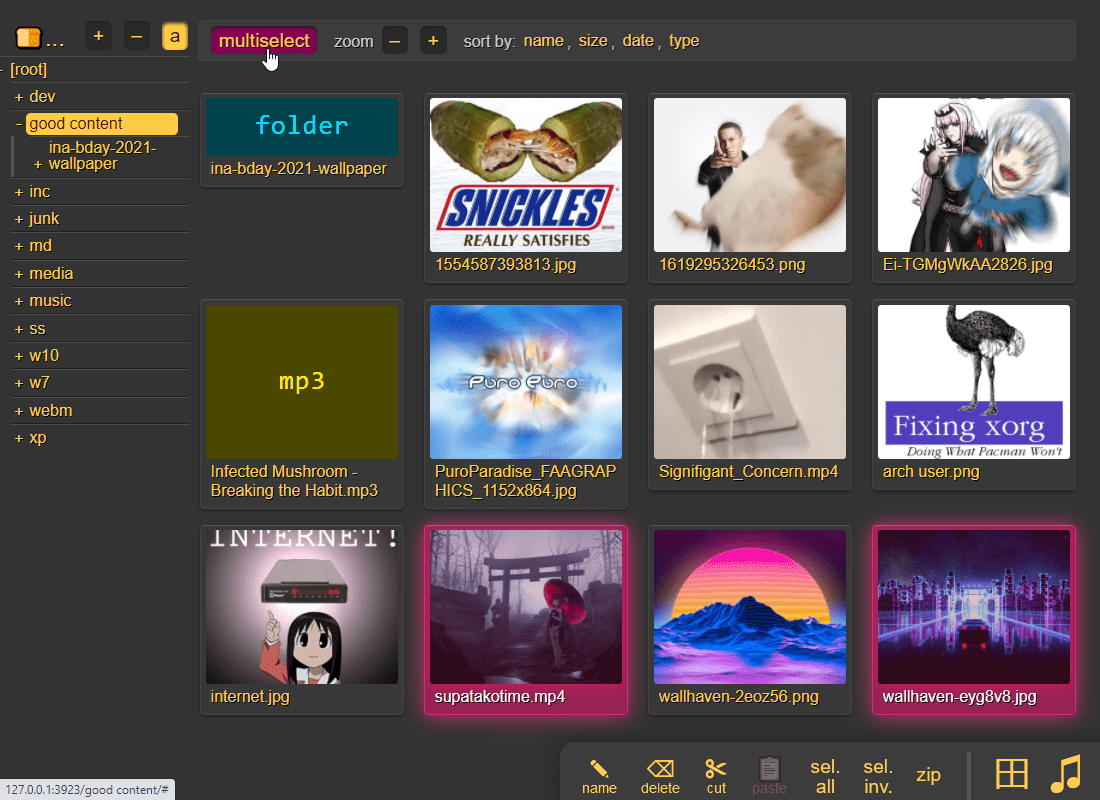
it does static images with Pillow / pyvips / FFmpeg, and uses FFmpeg for video files, so you may want to --no-thumb or maybe just --no-vthumb depending on how dangerous your users are
* Pillow is 3x faster (and safer) than FFmpeg
* disable thumbnails for specific volumes with volflag dthumb for all, or dvthumb / dathumb / dithumb for video/audio/images only
* for installing FFmpeg on windows, see optional dependencies
audio files are converted into spectrograms using FFmpeg unless you --no-athumb (and some FFmpeg builds may need --th-ff-swr)
images with the following names (see --th-covers) become the thumbnail of the folder they're in: folder.png, folder.jpg, cover.png, cover.jpg
* the order is significant, so if both cover.png and folder.jpg exist in a folder, it will pick the first matching --th-covers entry (folder.jpg)
* and, if you enable file indexing, it will also try those names as dotfiles (.folder.jpg and so), and then fallback on the first picture in the folder (if it has any pictures at all)
* disable folderthumbs with --th-covers no
enabling multiselect lets you click files to select them, and then shift-click another file for range-select
* multiselect is mostly intended for phones/tablets, but the sel option in the [⚙️] settings tab is better suited for desktop use, allowing selection by CTRL-clicking and range-selection with SHIFT-click, all without affecting regular clicking
* the sel option can be made default globally with --gsel or per-volume with volflag gsel
to show /icons/exe.png and /icons/elf.gif as the thumbnail for all .exe and .elf files respectively, do this: --ext-th=exe=/icons/exe.png --ext-th=elf=/icons/elf.gif
* optionally as separate volflags for each mapping; see config file example below
* the supported image formats are jpg, png, gif, webp, ico
* be careful with svg; chrome will crash if you have too many unique svg files showing on the same page (the limit is 250 or so) -- showing the same handful of svg files thousands of times is ok however
note:
* heif/heifs/heic/heics images usually require the libvips optional dependency but this is not possible with the docker-images due to legal reasons
* if you do not want thumbnails to be generated on-the-fly, and instead wish to generate all of them on server startup, then see thumbnail pregen
config file example:
[global]
  no-thumb   # disable ALL thumbnails and audio transcoding
  no-vthumb  # only disable video thumbnails

[/music]
  /mnt/nas/music
  accs:
    r: *     # everyone can read
  flags:
    dthumb   # disable ALL thumbnails and audio transcoding
    dvthumb  # only disable video thumbnails
    ext-th:  exe=/ico/exe.png  # /ico/exe.png is the thumbnail of *.exe
    ext-th:  elf=/ico/elf.gif  # ...and /ico/elf.gif is used for *.elf
    th-covers:  folder.png,folder.jpg,cover.png,cover.jpg  # the default
download folders (or file selections) as zip or tar files
select which type of archive you want in the [⚙️] config tab:
| name | url-suffix | description |
|---|---|---|
tar |
?tar |
plain gnutar, works great with curl \| tar -xv |
pax |
?tar=pax |
pax-format tar, futureproof, not as fast |
tgz |
?tar=gz |
gzip compressed gnu-tar (slow), for curl \| tar -xvz |
txz |
?tar=xz |
gnu-tar with xz / lzma compression (v.slow) |
zip |
?zip |
works everywhere, glitchy filenames on win7 and older |
zip_dos |
?zip=dos |
traditional cp437 (no unicode) to fix glitchy filenames |
zip_crc |
?zip=crc |
cp437 with crc32 computed early for truly ancient software |
3 (0=fast, 9=best), change with ?tar=gz:91 (0=fast, 9=best), change with ?tar=xz:92 (1=fast, 9=best), change with ?tar=bz2:9up2k.db and dir.txt is always excludedcurl foo?zip | bsdtar -xv?tar is better for large files, especially if the total exceeds 4 GiBzip_crc will take longer to download since the server has to read each file twiceyou can also zip a selection of files or folders by clicking them in the browser, that brings up a selection editor and zip button in the bottom right
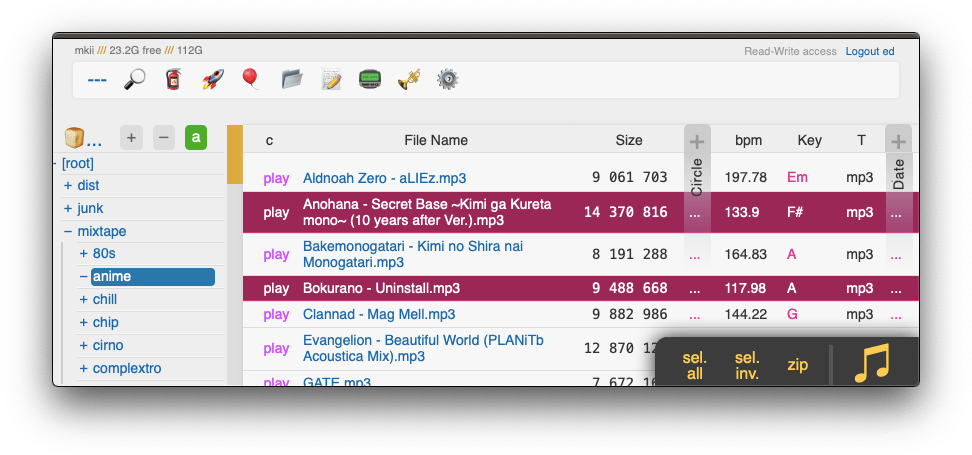
cool trick: download a folder by appending url-params ?tar&opus or ?tar&mp3 to transcode all audio files (except aac|m4a|mp3|ogg|opus|wma) to opus/mp3 before they're added to the archive
* super useful if you're 5 minutes away from takeoff and realize you don't have any music on your phone but your server only has flac files and downloading those will burn through all your data + there wouldn't be enough time anyways
* and url-param &name=foo changes the name of the toplevel folder in the archive to foo, and just &name removes the folder entirely
* and url-param &nodot skips dotfiles/dotfolders; they are included by default if your account has permission to see them
* and url-params &j / &w produce jpeg/webm thumbnails/spectrograms instead of the original audio/video/images (&p for audio waveforms)
* can also be used to pregenerate thumbnails; combine with --th-maxage=9999999 or --th-clean=0
* but now there is also a real thumbnail pregen so just use that
drag files/folders into the web-browser to upload
dragdrop is the recommended way, but you may also:
when uploading files through dragdrop or CTRL-V, this initiates an upload using up2k; there are two browser-based uploaders available:
* [🎈] bup, the basic uploader, supports almost every browser since netscape 4.0
* [🚀] up2k, the good / fancy one
NB: you can undo/delete your own uploads with [🧯] unpost (and this is also where you abort unfinished uploads, but you have to refresh the page first)
up2k has several advantages: * you can drop folders into the browser (files are added recursively) * files are processed in chunks, and each chunk is checksummed * uploads autoresume if they are interrupted by network issues * uploads resume if you reboot your browser or pc, just upload the same files again * server detects any corruption; the client reuploads affected chunks * the client doesn't upload anything that already exists on the server * no filesize limit, even when a proxy limits the request size (for example Cloudflare) * much higher speeds than ftp/scp/tarpipe on some internet connections (mainly american ones) thanks to parallel connections * the last-modified timestamp of the file is preserved
it is perfectly safe to restart / upgrade copyparty while someone is uploading to it!
all known up2k clients will resume just fine 💪
see up2k for details on how it works, or watch a demo video

protip: you can avoid scaring away users with contrib/plugins/minimal-up2k.js which makes it look much simpler
protip: if you enable favicon in the [⚙️] settings tab (by typing something into the textbox), the icon in the browser tab will indicate upload progress -- also, the [🔔] and/or [🔊] switches enable visible and/or audible notifications on upload completion
the up2k UI is the epitome of polished intuitive experiences:
* "parallel uploads" specifies how many chunks to upload at the same time
* [🏃] analysis of other files should continue while one is uploading
* [🥔] shows a simpler UI for faster uploads from slow devices
* [🛡️] decides when to overwrite existing files on the server
* 🛡️ = never (generate a new filename instead)
* 🕒 = overwrite if the server-file is older
* ♻️ = always overwrite if the files are different
* [🎲] generate random filenames during upload
* [🔎] switch between upload and file-search mode
* ignore [🔎] if you add files by dragging them into the browser
and then there's the tabs below it,
* [ok] is the files which completed successfully
* [ng] is the ones that failed / got rejected (already exists, ...)
* [done] shows a combined list of [ok] and [ng], chronological order
* [busy] files which are currently hashing, pending-upload, or uploading
* plus up to 3 entries each from [done] and [que] for context
* [que] is all the files that are still queued
note that since up2k has to read each file twice, [🎈] bup can theoretically be up to 2x faster in some extreme cases (files bigger than your ram, combined with an internet connection faster than the read-speed of your HDD, or if you're uploading from a cuo2duo)
if you are resuming a massive upload and want to skip hashing the files which already finished, you can enable turbo in the [⚙️] config tab, but please read the tooltip on that button
if the server is behind a proxy which imposes a request-size limit, you can configure up2k to sneak below the limit with server-option --u2sz
if you want to replace existing files on the server with new uploads by default, run with --u2ow 2 (only works if users have the delete-permission, and can still be disabled with 🛡️ in the UI)
dropping files into the browser also lets you see if they exist on the server

when you drag/drop files into the browser, you will see two dropzones: Upload and Search
on a phone? toggle the
[🔎]switch green before tapping the big yellow Search button to select your files
the files will be hashed on the client-side, and each hash is sent to the server, which checks if that file exists somewhere
files go into [ok] if they exist (and you get a link to where it is), otherwise they land in [ng]
* the main reason filesearch is combined with the uploader is cause the code was too spaghetti to separate it out somewhere else, this is no longer the case but now i've warmed up to the idea too much
if you have a "wark" (file-identifier/checksum) then you can also search for that in the [🔎] tab by putting w = kFpDiztbZc8Z1Lzi in the raw field
undo/delete accidental uploads using the [🧯] tab in the UI

you can unpost even if you don't have regular move/delete access, however only for files uploaded within the past --unpost seconds (default 12 hours) and the server must be running with -e2d
config file example:
[global]
  e2d            # enable up2k database (remember uploads)
  unpost: 43200  # 12 hours (default)
uploads can be given a lifetime, after which they expire / self-destruct
the feature must be enabled per-volume with the lifetime upload rule which sets the upper limit for how long a file gets to stay on the server
clients can specify a shorter expiration time using the up2k ui -- the relevant options become visible upon navigating into a folder with lifetimes enabled -- or by using the life upload modifier
specifying a custom expiration time client-side will affect the timespan in which unposts are permitted, so keep an eye on the estimates in the up2k ui
download files while they're still uploading (demo video) -- it's almost like peer-to-peer
requires the file to be uploaded using up2k (which is the default drag-and-drop uploader), alternatively the command-line program
the control-panel shows the ETA for all incoming files , but only for files being uploaded into volumes where you have read-access
cut/paste, rename, and delete files/folders (if you have permission)
file selection: click somewhere on the line (not the link itself), then:
* space to toggle
* up/down to move
* shift-up/down to move-and-select
* ctrl-shift-up/down to also scroll
* shift-click another line for range-select
ctrl-xctrl-cctrl-v in another folderF2you can copy/move files across browser tabs (cut/copy in one tab, paste in another)
share a file or folder by creating a temporary link
when enabled in the server settings (--shr), click the bottom-right share button to share the folder you're currently in, or alternatively:
* select a folder first to share that folder instead
* select one or more files to share only those files
this feature was made with identity providers in mind -- configure your reverseproxy to skip the IdP's access-control for a given URL prefix and use that to safely share specific files/folders sans the usual auth checks
when creating a share, the creator can choose any of the following options:
0 or blank means infinitesemi-intentional limitations:
e2d is set, and/or at least one volume on the server has volflag e2dspecify --shr /foobar to enable this feature; a toplevel virtual folder named foobar is then created, and that's where all the shares will be served from
foobar is just an exampleshr: /foobar inside the [global] section insteadusers can delete their own shares in the controlpanel, and a list of privileged users (--shr-adm) are allowed to see and/or delet any share on the server
the volflag --shr-who lets you control who can create a share from that volume, either no (nobody), a (people with admin permission), or auth (people who are logged in)
after a share has expired, it remains visible in the controlpanel for --shr-rt minutes (default is 1 day), and the owner can revive it by extending the expiration time there
security note: using this feature does not mean that you can skip the accounts and volumes section -- you still need to restrict access to volumes that you do not intend to share with unauthenticated users! it is not sufficient to use rules in the reverseproxy to restrict access to just the /share folder.
select some files and press F2 to bring up the rename UI

quick explanation of the buttons,
* [✅ apply rename] confirms and begins renaming
* [❌ cancel] aborts and closes the rename window
* [↺ reset] reverts any filename changes back to the original name
* [decode] does a URL-decode on the filename, fixing stuff like & and %20
* [advanced] toggles advanced mode
advanced mode: rename files based on rules to decide the new names, based on the original name (regex), or based on the tags collected from the file (artist/title/...), or a mix of both
in advanced mode,
* [case] toggles case-sensitive regex
* regex is the regex pattern to apply to the original filename; any files which don't match will be skipped
* format is the new filename, taking values from regex capturing groups and/or from file tags
* very loosely based on foobar2000 syntax
* presets lets you save rename rules for later
available functions:
* $lpad(text, length, pad_char)
* $rpad(text, length, pad_char)
two counters are available; .n.s is the nth file in the selection, and .n.d the nth file in the folder, for example rename-output file(.n.d).(ext) gives file5.bin, and beach-$lpad((.n.s),3,0).(ext) is beach-017.jpg and the initial value of each counter can be set in the textboxes underneath the preset dropdown
so,
say you have a file named meganeko - Eclipse - 07 Sirius A.mp3 (absolutely fantastic album btw) and the tags are: Album:Eclipse, Artist:meganeko, Title:Sirius A, tn:7
you could use just regex to rename it:
* regex = (.*) - (.*) - ([0-9]{2}) (.*)
* format = (3). (1) - (4)
* output = 07. meganeko - Sirius A.mp3
or you could use just tags:
* format = $lpad((tn),2,0). (artist) - (title).(ext)
* output = 7. meganeko - Sirius A.mp3
or a mix of both:
* regex = - ([0-9]{2})
* format = (1). (artist) - (title).(ext)
* output = 07. meganeko - Sirius A.mp3
the metadata keys you can use in the format field are the ones in the file-browser table header (whatever is collected with -mte and -mtp)
monitor a folder with your RSS reader , optionally recursive
must be enabled per-volume with volflag rss or globally with --rss
the feed includes itunes metadata for use with podcast readers such as AntennaPod
a feed example: https://cd.ocv.me/a/d2/d22/?rss&fext=mp3
url parameters:
pw=hunter2 for password auth--usernames then do pw=username:password insteadnopw disables embedding the password (if provided) into item-URLs in the feednopw=a disables mentioning the password anywhere at all in the feed; may break some readersrecursive to also include subfolderstitle=foo changes the feed title (default: folder name)fext=mp3,opus only include mp3 and opus files (default: all)nf=30 only show the first 30 results (default: 250)sort=m sort by mtime (file last-modified), newest first (default)u = upload-time; NOTE: non-uploaded files have upload-time 0n = filenamea = filesizeM = oldest file firstbrowse and download files from your e-book reader
enabled with the opds volflag or --opds global option
add ?opds to the end of the url you would like to browse, then input that in your opds client.
for example: https://copyparty.example/books/?opds.
to log in with a password, enter it into either of the username or password fields in your client.
--usernames, then you need to enter both username and password .note: some clients (e.g. Moon+ Reader) will not send the password when downloading cover images, which will
cause your ip to be banned by copyparty. to work around this, you can grant the g permission
to unauthenticated requests and enable filekeys to prevent guessing filenames. for example:
-vbooks:books:r,ed:g:c,fk,opds
by default, not all file types will be listed in opds feeds. to change this, add the extension to
--opds-exts (volflag: opds_exts), or empty the list to list everything
list all recent uploads by clicking "show recent uploads" in the controlpanel
will show uploader IP and upload-time if the visitor has the admin permission
global-option --ups-when makes upload-time visible to all users, and not just admins
global-option --ups-who (volflag ups_who) specifies who gets access (0=nobody, 1=admins, 2=everyone), default=2
note that the 🧯 unpost feature is better suited for viewing your own recent uploads, as it includes the option to undo/delete them
config file example:
[global]
  ups-when    # everyone can see upload times
  ups-who: 1  # but only admins can see the list,
              # so ups-when doesn't take effect
plays almost every audio format there is (if the server has FFmpeg installed for on-demand transcoding)
the following audio formats are usually always playable, even without FFmpeg: aac|flac|m4a|mp3|ogg|opus|wav
some highlights:
* OS integration; control playback from your phone's lockscreen (windows // iOS // android)
* shows the audio waveform in the seekbar
* not perfectly gapless but can get really close (see settings + eq below); good enough to enjoy gapless albums as intended
* videos can be played as audio, without wasting bandwidth on the video
* adding ?v to the end of an audio/video/image link will make it open in the mediaplayer
click the play link next to an audio file, or copy the link target to share it (optionally with a timestamp to start playing from, like that example does)
open the [🎺] media-player-settings tab to configure it,
* "switches":
* [🔁] repeats one single song forever
* [🔀] shuffles the files inside each folder
* [preload] starts loading the next track when it's about to end, reduces the silence between songs
* [full] does a full preload by downloading the entire next file; good for unreliable connections, bad for slow connections
* [~s] toggles the seekbar waveform display
* [/np] enables buttons to copy the now-playing info as an irc message
* [📻] enables buttons to create an m3u playlist with the selected songs
* [os-ctl] makes it possible to control audio playback from the lockscreen of your device (enables mediasession)
* [seek] allows seeking with lockscreen controls (buggy on some devices)
* [art] shows album art on the lockscreen
* [🎯] keeps the playing song scrolled into view (good when using the player as a taskbar dock)
* [⟎] shrinks the playback controls
* "buttons":
* [uncache] may fix songs that won't play correctly due to bad files in browser cache
* "at end of folder":
* [loop] keeps looping the folder
* [next] plays into the next folder
* "transcode":
* [flac] converts flac and wav files into opus (if supported by browser) or mp3
* [aac] converts aac and m4a files into opus (if supported by browser) or mp3
* [oth] converts all other known formats into opus (if supported by browser) or mp3
* aac|ac3|aif|aiff|alac|alaw|amr|ape|au|dfpwm|dts|flac|gsm|it|m4a|m4b|m4r|mka|mo3|mod|mp2|mp3|mpc|mptm|mt2|mulaw|ogg|okt|opus|ra|s3m|tak|tta|ulaw|wav|wma|wv|xm|xpk
* "transcode to":
* [opus] produces an opus whenever transcoding is necessary (the best choice on Android and PCs)
* [awo] is opus in a weba file, good for iPhones (iOS 17.5 and newer) but Apple is still fixing some state-confusion bugs as of iOS 18.2.1
* [caf] is opus in a caf file, good for iPhones (iOS 11 through 17), technically unsupported by Apple but works for the most part
* [mp3] -- the myth, the legend, the undying master of mediocre sound quality that definitely works everywhere
* [flac] -- lossless but compressed, for LAN and/or fiber playback on electrostatic headphones
* [wav] -- lossless and uncompressed, for LAN and/or fiber playback on electrostatic headphones connected to very old equipment
* flac and wav must be enabled with --allow-flac / --allow-wav to allow spending the disk space
* "tint" reduces the contrast of the playback bar
create and play m3u8 playlists -- see example text and player
click a file with the extension m3u or m3u8 (for example mixtape.m3u or touhou.m3u8 ) and you get two choices: Play / Edit
playlists can include songs across folders anywhere on the server, but filekeys/dirkeys are NOT supported, so the listener must have read-access or get-access to the files
with a standalone mediaplayer or copyparty
you can use foobar2000, deadbeef, just about any standalone player should work -- but you might need to edit the filepaths in the playlist so they fit with the server-URLs
alternatively, you can create the playlist using copyparty itself:
open the [🎺] media-player-settings tab and enable the [📻] create-playlist feature -- this adds two new buttons in the bottom-right tray, [📻add] and [📻copy] which appear when you listen to music, or when you select a few audiofiles
click the 📻add button while a song is playing (or when you've selected some songs) and they'll be added to "the list" (you can't see it yet)
at any time, click 📻copy to send the playlist to your clipboard
if you want to wipe the playlist and start from scratch, just refresh the page
create a new textfile, name it something.m3u and paste the playlist there
can also boost the volume in general, or increase/decrease stereo width (like crossfeed just worse)
has the convenient side-effect of reducing the pause between songs, so gapless albums play better with the eq enabled (just make it flat)
not available on iPhones / iPads because AudioContext currently breaks background audio playback on iOS (15.7.8)
due to phone / app settings, android phones may randomly stop playing music when the power saver kicks in, especially at the end of an album -- you can fix it by disabling power saving in the app settings of the browser you use for music streaming (preferably a dedicated one)
with realtime streaming of logfiles and such (demo) , and terminal colors work too
click -txt- next to a textfile to open the viewer, which has the following toolbar buttons:
✏️ edit opens the textfile editor📡 follow starts monitoring the file for changes, streaming new lines in realtimetail -f&tail to the textviewer URLand there are two editors

there is a built-in extension for inline clickable thumbnails;
* enable it by adding <!-- th --> somewhere in the doc
* add thumbnails with !th[l](your.jpg) where l means left-align (r = right-align)
* a single line with --- clears the float / inlining
* in the case of README.md being displayed below a file listing, thumbnails will open in the gallery viewer
other notes, * the document preview has a max-width which is the same as an A4 paper when printed
dynamic docs with serverside variable expansion to replace stuff like {{self.ip}} with the client's IP, or {{srv.htime}} with the current time on the server
see ./srv/expand/ for usage and examples
you can link a particular timestamp in an audio file by adding it to the URL, such as &20 / &20s / &1m20 / &t=1:20 after the .../#af-c8960dab
enabling the audio equalizer can help make gapless albums fully gapless in some browsers (chrome), so consider leaving it on with all the values at zero
get a plaintext file listing by adding ?ls=t to a URL, or a compact colored one with ?ls=v (for unix terminals)
if you are using media hotkeys to switch songs and are getting tired of seeing the OSD popup which Windows doesn't let you disable, consider ./contrib/media-osd-bgone.ps1
click the bottom-left π to open a javascript prompt for debugging
files named .prologue.html / .epilogue.html will be rendered before/after directory listings unless --no-logues
files named descript.ion / DESCRIPT.ION are parsed and displayed in the file listing, or as the epilogue if nonstandard
files named README.md / readme.md will be rendered after directory listings unless --no-readme (but .epilogue.html takes precedence)
and PREADME.md / preadme.md is shown above directory listings unless --no-readme or .prologue.html
README.md and *logue.html can contain placeholder values which are replaced server-side before embedding into directory listings; see --help-exp
search by size, date, path/name, mp3-tags, ...

when started with -e2dsa copyparty will scan/index all your files. This avoids duplicates on upload, and also makes the volumes searchable through the web-ui:
* make search queries by size/date/directory-path/filename, or...
* drag/drop a local file to see if the same contents exist somewhere on the server, see file-search
path/name queries are space-separated, AND'ed together, and words are negated with a - prefix, so for example:
* path: shibayan -bossa finds all files where one of the folders contain shibayan but filters out any results where bossa exists somewhere in the path
* name: demetori styx gives you good stuff
the raw field allows for more complex stuff such as ( tags like *nhato* or tags like *taishi* ) and ( not tags like *nhato* or not tags like *taishi* ) which finds all songs by either nhato or taishi, excluding collabs (terrible example, why would you do that)
for the above example to work, add the commandline argument -e2ts to also scan/index tags from music files, which brings us over to:
using arguments or config files, or a mix of both:
* using a config-file (-c some.conf) is best, easier to read/maintain; see ./docs/example.conf
* for complex and intricate setups, see how ./docs/example2.conf includes additional config-files/folders with % copyparty.d which loads ./docs/copyparty.d/some.conf
* kill -s USR1 (same as systemctl reload copyparty) to reload accounts and volumes from config files without restarting
* or click the [reload cfg] button in the control-panel if the user has a/admin in any volume
* changes to the [global] config section requires a restart to take effect
NB: as humongous as this readme is, there is also a lot of undocumented features. Run copyparty with --help (or click that link) to see all available global options; all of those can be used in the [global] section of config files, and everything listed in --help-flags can be used in volumes as volflags (per-volume configuration).
* if running in docker/podman, try this: docker run --rm -it copyparty/ac --help
* or if you prefer plaintext, https://copyparty.eu/helptext.txt
sleep better at night by telling copyparty to periodically check whether your version has a known vulnerability
this feature can be enabled by setting the global-option --vc-url to one of the following URLs; choose what severity level you want to be notified for:
* https://api.copyparty.eu/advisories-panic -- only really bad stuff, the "UPGRADE NOW" kind
* https://api.copyparty.eu/advisories -- everything important / noteworthy, "upgrade when you can"
* https://api.copyparty.eu/advisories-all -- everything, including stuff that's unlikely to affect anyone
* https://api.github.com/repos/9001/copyparty/security-advisories?per_page=9 -- same as advisories-all
note that https://api.copyparty.eu/advisories may (for example) skip some advisories rated High but include some Low; that's because an easily-reachable Low in a default-enabled feature is more severe than a High which is a theoretical bug in a contrived use of a fringe feature, but the CVE calculator would still classify that as High
if you want to use the github advisory feed but only care about advisories rated medium/moderate or higher, then global-option --vc-sev medium does that, but see previous paragraph
to see what happens when a bad version is detected, try
--vc-url https://api.copyparty.eu/advisories-test
also consider the following options:
* global-option --vc-age is how often (in hours) to check that URL; default is 3
* global-option --vc-exit can be enabled to panic and immediately exit if a vulnerability is indicated
* if --vc-exit is not enabled, it just shows a warning on the controlpanel for all users with permission a or A
config file example:
[global]
  vc-url: https://api.copyparty.eu/advisories
  vc-age: 3  # how many hours to wait between each check
  vc-exit    # emergency-exit if current version is vulnerable
  vc-sev: medium  # only care about severity 'Medium'/'Moderate' or higher (github-only; don't use this with api.copyparty.eu)
serverlog is sent to stdout by default (but logging to a file is also possible)
"stdout" usually means either the terminal, or journalctl, or whatever is collecting logs from your docker containers, so that depends on your setup
-lo logfolder/cpp-%Y-%m-%d.txt to log to a file instead%Y-%m-%d makes it create a new logfile every day, with the date as filename-lo whatever.txt can be used without -q to log to both at the same timeless -R in a terminal to see colors correctly--flo 2 disables colors for just the logfile--no-ansi disables colors for both the terminal and logfileconfig file example:
[global]
  log-date: %Y-%m-%d  # show dates on stdout too
  lo: /var/log/cpp/%Y-%m-%d.txt  # logfile path
  flo: 2  # just text (no colors) in logfile
  q       # disable stdout; use logfile only
announce enabled services on the LAN (pic) -- -z enables both mdns and ssdp
--z-on / --z-off limits the feature to certain networksconfig file example:
[global]
  z      # enable all zeroconf features (mdns, ssdp)
  zm     # only enables mdns (does nothing since we already have z)
  z-on: 192.168.0.0/16, 10.1.2.0/24  # restrict to certain subnets
LAN domain-name and feature announcer
uses multicast dns to give copyparty a domain which any machine on the LAN can use to access it
all enabled services (webdav, ftp, smb) will appear in mDNS-aware file managers (KDE, gnome, macOS, ...)
the domain will be partybox.local if the machine's hostname is partybox unless --name specifies something else
and the web-UI will be available at http://partybox.local:3923/
:3923 so you can use http://partybox.local/ instead then see listen on port 80 and 443windows-explorer announcer
uses ssdp to make copyparty appear in the windows file explorer on all machines on the LAN
doubleclicking the icon opens the "connect" page which explains how to mount copyparty as a local filesystem
if copyparty does not appear in windows explorer, use --zsv to see why:
print a qr-code (screenshot) for quick access, great between phones on android hotspots which keep changing the subnet
--qr enables it--qrs does https instead of http--qrl lootbox/?pw=hunter2 appends to the url, linking to the lootbox folder with password hunter2--qrz 1 forces 1x zoom instead of autoscaling to fit the terminal size--qr-pin 1 makes the qr-code stick to the bottom of the console (never scrolls away)--qr-file qr.txt:1:2 writes a small qr-code to qr.txt--qr-file qr.txt:2:2 writes a big qr-code to qr.txt--qr-file qr.svg:1:2 writes a vector-graphics qr-code to qr.svg--qr-file qr.png:8:4:333333:ffcc55 writes an 8x-magnified yellow-on-gray qr.png--qr-file qr.png:8:4::ffffff writes an 8x-magnified white-on-transparent qr.pngit uses the server hostname if mdns is enabled, otherwise it'll use your external ip (default route) unless --qri specifies a specific ip-prefix or domain
an FTP server can be started using --ftp 3921, and/or --ftps for explicit TLS (ftpes)
--ftp-pr 12000-13000ftp and ftps, the port-range will be divided in half--usernamessome recommended FTP / FTPS clients; wark = example password:
* https://winscp.net/eng/download.php
* https://filezilla-project.org/ struggles a bit with ftps in active-mode, but is fine otherwise
* https://rclone.org/ does FTPS with tls=false explicit_tls=true
* lftp -u k,wark -p 3921 127.0.0.1 -e ls
* lftp -u k,wark -p 3990 127.0.0.1 -e 'set ssl:verify-certificate no; ls'
* curl ftp://127.0.0.1:3921/ (plaintext ftp)
* curl --ssl-reqd ftp://127.0.0.1:3990/ (encrypted ftps)
config file example, which restricts FTP to only use ports 3921 and 12000-12099 so all of those ports must be opened in your firewall:
[global]
  ftp: 3921
  ftp-pr: 12000-12099
goes roughly 700 MiB/s (slower than webdav and ftp)
this is not ftps (which copyparty also supports); ftps is ftp-tls (think http/https), while sftp is ssh-based and (preferably) uses ssh-keys for authentication
the sftp-server requires the optional dependency paramiko;
* if you are not using docker, then install paramiko somehow
* if you are using docker, then use one of the following image variants: ac / im / iv / dj
enable sftpd with --sftp 3922 to listen on port 3922;
* use global-option sftp-key to associate an ssh-key with a user;
* commandline: --sftp-key 'david ssh-ed25519 AAAAC3NzaC...'
* config-file: sftp-key: david ssh-ed25519 AAAAC3NzaC...
* --sftp-pw enables login with passwords (default is ssh-keys only)
* --sftp-anon foo enables login with username foo and no password; gives the same access/permissions as the website does when not logged in
see the sftp section in --help for the other options
with read-write support, supports winXP and later, macos, nautilus/gvfs ... a great way to access copyparty straight from the file explorer in your OS
click the connect button in the control-panel to see connection instructions for windows, linux, macos
general usage:
* login with any username + your password, or put your password in the username field (password field can be empty/whatever)
* unless you enabled --usernames
on macos, connect from finder: * [Go] -> [Connect to Server...] -> http://192.168.123.1:3923/
to be able to edit existing files, the client must have the Delete-permission, and some webdav clients will also require the daw volflag or global-option (not necessary if the client sends the x-oc-mtime header). Without daw, those clients will fail to modify existing files and instead create new copies with names like notes.txt-1771978661.726032-3i9GPghL.txt. NOTE: Enabling daw will also make all PUT-uploads overwrite existing files if the user has delete-access, so use with caution. Another alternative is the dav-port option
note: if you have enabled IdP authentication then that may cause issues for some/most webdav clients; see the webdav section in the IdP docs
using the GUI (winXP or later):
* rightclick [my computer] -> [map network drive] -> Folder: http://192.168.123.1:3923/
* on winXP only, click the Sign up for online storage hyperlink instead and put the URL there
* providing your password as the username is recommended; the password field can be anything or empty
* unless you enabled --usernames
the webdav client that's built into windows has the following list of bugs; you can avoid all of these by connecting with rclone instead:
* win7+ doesn't actually send the password to the server when reauthenticating after a reboot unless you first try to login with an incorrect password and then switch to the correct password
* or just type your password into the username field instead to get around it entirely
* connecting to a folder which allows anonymous read will make writing impossible, as windows has decided it doesn't need to login
* workaround: connect twice; first to a folder which requires auth, then to the folder you actually want, and leave both of those mounted
* or set the server-option --dav-auth to force password-auth for all webdav clients
* win7+ may open a new tcp connection for every file and sometimes forgets to close them, eventually needing a reboot
* maybe NIC-related (??), happens with win10-ltsc on e1000e but not virtio
* windows cannot access folders which contain filenames with invalid unicode or forbidden characters (<>:"/\|?*), or names ending with .
* winxp cannot show unicode characters outside of some range
* latin-1 is fine, hiragana is not (not even as shift-jis on japanese xp)
a TFTP server (read/write) can be started using --tftp 3969 (you probably want ftp instead unless you are actually communicating with hardware from the 90s (in which case we should definitely hang some time))
that makes this the first RTX DECT Base that has been updated using copyparty 🎉
69 (nice)most clients expect to find TFTP on port 69, but on linux and macos you need to be root to listen on that. Alternatively, listen on 3969 and use NAT on the server to forward 69 to that port;
* on linux: iptables -t nat -A PREROUTING -i eth0 -p udp --dport 69 -j REDIRECT --to-port 3969
some recommended TFTP clients:
* curl (cross-platform, read/write)
* get: curl --tftp-blksize 1428 tftp://127.0.0.1:3969/firmware.bin
* put: curl --tftp-blksize 1428 -T firmware.bin tftp://127.0.0.1:3969/
* windows: tftp.exe (you probably already have it)
* tftp -i 127.0.0.1 put firmware.bin
* linux: tftp-hpa, atftp
* atftp --option "blksize 1428" 127.0.0.1 3969 -p -l firmware.bin -r firmware.bin
* tftp -v -m binary 127.0.0.1 3969 -c put firmware.bin
unsafe, slow, not recommended for wan, enable with --smb for read-only or --smbw for read-write
click the connect button in the control-panel to see connection instructions for windows, linux, macos
dependencies: python3 -m pip install --user -U impacket==0.13.0
* newer versions of impacket will hopefully work just fine but there is monkeypatching so maybe not
some BIG WARNINGS specific to SMB/CIFS, in decreasing importance:
* not entirely confident that read-only is read-only
* the smb backend is not fully integrated with vfs, meaning there could be security issues (path traversal). Please use --smb-port (see below) and prisonparty or bubbleparty
* account passwords work per-volume as expected, and so does account permissions (read/write/move/delete), but --smbw must be given to allow write-access from smb
* shadowing probably works as expected but no guarantees
* not compatible with pw-hashing or --usernames
and some minor issues,
* clients only see the first ~400 files in big folders;
* this was originally due to impacket#1433 which was fixed in impacket-0.12, so you can disable the workaround with --smb-nwa-1 but then you get unacceptably poor performance instead
* hot-reload of server config (/?reload=cfg) does not include the [global] section (commandline args)
* listens on the first IPv4 -i interface only (default = :: = 0.0.0.0 = all)
* login doesn't work on winxp, but anonymous access is ok -- remove all accounts from copyparty config for that to work
* win10 onwards does not allow connecting anonymously / without accounts
* python3 only
* slow (the builtin webdav support in windows is 5x faster, and rclone-webdav is 30x faster)
* those numbers are specifically for copyparty's smb-server (because it sucks); other smb-servers should be similar to webdav
known client bugs:
* on win7 only, --smb1 is much faster than smb2 (default) because it keeps rescanning folders on smb2
* however smb1 is buggy and is not enabled by default on win10 onwards
* windows cannot access folders which contain filenames with invalid unicode or forbidden characters (<>:"/\|?*), or names ending with .
the smb protocol listens on TCP port 445, which is a privileged port on linux and macos, which would require running copyparty as root. However, this can be avoided by listening on another port using --smb-port 3945 and then using NAT on the server to forward the traffic from 445 to there;
* on linux: iptables -t nat -A PREROUTING -i eth0 -p tcp --dport 445 -j REDIRECT --to-port 3945
authenticate with one of the following:
* username $username, password $password
* username $password, password k
edit office documents in the web-ui
needs a wopi client to work, and the only supported wopi client is a selfhosted collabora online server; eventually onlyoffice will probably also be supported: issue #1574
no further documentation or examples yet, issue #1575
tweaking the ui
--sort or per-volume with the sort volflag; specify one or more comma-separated columns to sort by, and prefix the column name with - for reverse sorthref ext sz ts tags/.up_at tags/Circle tags/.tn tags/Artist tags/Title--sort tags/Circle,tags/.tn,tags/Artist,tags/Title,href-e2d -mte +.up_at and then --sort tags/.up_atsee ./docs/rice for more, including:
* how to hide ui-elements
* custom fonts
* custom loading-spinner
* adding stuff (css/<meta>/...) to the html <head> tag
* adding your own translation
discord and social-media embeds
can be enabled globally with --og or per-volume with volflag og
note that this disables hotlinking because the opengraph spec demands it; to sneak past this intentional limitation, you can enable opengraph selectively by user-agent, for example --og-ua '(Discord|Twitter|Slack)bot' (or volflag og_ua)
you can also hotlink files regardless by appending ?raw to the url
WARNING: if you plan to use WebDAV, then
--og-ua/og_uamust be configured
if you want to entirely replace the copyparty response with your own jinja2 template, give the template filepath to --og-tpl or volflag og_tpl (all members of HttpCli are available through the this object)
enable symlink-based upload deduplication globally with --dedup or per-volume with volflag dedup
by default, when someone tries to upload a file that already exists on the server, the upload will be politely declined, and the server will copy the existing file over to where the upload would have gone
if you enable deduplication with --dedup then it'll create a symlink instead of a full copy, thus reducing disk space usage
--safe-dedup=1 because you have other software tampering with your files, so you want to entirely disable detection of duplicate data instead, then you can specify --no-clone globally or noclone as a volflagwarning: when enabling dedup, you should also:
* enable indexing with -e2dsa or volflag e2dsa (see file indexing section below); strongly recommended
* ...and/or --hardlink-only to use hardlink-based deduplication instead of symlinks; see explanation below
* ...and/or --reflink to use CoW/reflink-based dedup (much safer than hardlink, but OS/FS-dependent)
it will not be safe to rename/delete files if you only enable dedup and none of the above; if you enable indexing then it is not necessary to also do hardlinks (but you may still want to)
by default, deduplication is done based on symlinks (symbolic links); these are tiny files which are pointers to the nearest full copy of the file
you can choose to use hardlinks instead of softlinks, globally with --hardlink-only or volflag hardlinkonly, and you can choose to use reflinks with --reflink or volflag reflink
advantages of using reflinks (CoW, copy-on-write): * entirely safe (when your filesystem supports it correctly); either file can be edited or deleted without affecting other copies * only linux 5.3 or newer, only python 3.14 or newer, only some filesystems (btrfs probably ok, maybe xfs too, but zfs had bugs)
advantages of using hardlinks: * hardlinks are more compatible with other software; they behave entirely like regular files * you can safely move and rename files using other file managers * symlinks need to be managed by copyparty to ensure the destinations remain correct
advantages of using symlinks (default): * each symlink can have its own last-modified timestamp, but a single timestamp is shared by all hardlinks * symlinks make it more obvious to other software that the file is not a regular file, so this can be less dangerous * hardlinks look like regular files, so other software may assume they are safe to edit without affecting the other copies
warning: if you edit the contents of a deduplicated file, then you will also edit all other copies of that file! This is especially surprising with hardlinks, because they look like regular files, but that same file exists in multiple locations
global-option --xlink / volflag xlink additionally enables deduplication across volumes, but this is probably buggy and not recommended
config file example:
[global]
  e2dsa  # scan and index filesystem on startup
  dedup  # symlink-based deduplication for all volumes

[/media]
  /mnt/nas/media
  flags:
    hardlinkonly  # this vol does hardlinks instead of symlinks
enable music search, upload-undo, and better dedup
file indexing relies on two database tables, the up2k filetree (-e2d) and the metadata tags (-e2t), stored in .hist/up2k.db. Configuration can be done through arguments, volflags, or a mix of both.
through arguments:
* -e2d enables file indexing on upload
* -e2ds also scans writable folders for new files on startup
* -e2dsa also scans all mounted volumes (including readonly ones)
* -e2t enables metadata indexing on upload
* -e2ts also scans for tags in all files that don't have tags yet
* -e2tsr also deletes all existing tags, doing a full reindex
* -e2v verifies file integrity at startup, comparing hashes from the db
* -e2vu patches the database with the new hashes from the filesystem
* -e2vp panics and kills copyparty instead
the same arguments can be set as volflags, in addition to d2d, d2ds, d2t, d2ts, d2v for disabling:
* -v ~/music::r:c,e2ds,e2tsr does a full reindex of everything on startup
* -v ~/music::r:c,d2d disables all indexing, even if any -e2* are on
* -v ~/music::r:c,d2t disables all -e2t* (tags), does not affect -e2d*
* -v ~/music::r:c,d2ds disables on-boot scans; only index new uploads
* -v ~/music::r:c,d2ts same except only affecting tags
note:
* upload-times can be displayed in the file listing by enabling the .up_at metadata key, either globally with -e2d -mte +.up_at or per-volume with volflags e2d,mte=+.up_at (will have a ~17% performance impact on directory listings)
* and file checksums can be shown with global-option -e2d -mte +w or volflag e2d,mte=+w (always active for users with permission a)
* e2tsr is probably always overkill, since e2ds/e2dsa would pick up any file modifications and e2ts would then reindex those, unless there is a new copyparty version with new parsers and the release note says otherwise
config file example (these options are recommended btw):
[global]
  e2dsa  # scan and index all files in all volumes on startup
  e2ts   # check newly-discovered or uploaded files for media tags
to save some time, you can provide a regex pattern for filepaths to only index by filename/path/size/last-modified (and not the hash of the file contents) by setting --no-hash '\.iso$' or the volflag :c,nohash=\.iso$, this has the following consequences:
* initial indexing is way faster, especially when the volume is on a network disk
* makes it impossible to file-search
* if someone uploads the same file contents, the upload will not be detected as a dupe, so it will not get symlinked or rejected
similarly, you can fully ignore files/folders using --no-idx [...] and :c,noidx=\.iso$
NOTE: no-idx and/or no-hash prevents deduplication of those files
if you set --no-hash [...] globally, you can enable hashing for specific volumes using flag :c,nohash=
to exclude certain filepaths from search-results, use --srch-excl or volflag srch_excl instead of --no-idx, for example --srch-excl 'password|logs/[0-9]'
config file example:
[/games]
  /mnt/nas/games
  flags:
    noidx: \.iso$  # skip indexing iso-files
    srch_excl: password|logs/[0-9]  # filter search results
avoid traversing into other filesystems using --xdev / volflag :c,xdev, skipping any symlinks or bind-mounts to another HDD for example
and/or you can --xvol / :c,xvol to ignore all symlinks leaving the volume's top directory, but still allow bind-mounts pointing elsewhere
xvol if they point into another volume where the user also has some sort of access, keeping permissions from outer/initial volumethese options will reduce performance; unlikely worst-case estimates are 14% reduction for directory listings, 35% for download-as-tar
as of copyparty v1.7.0 these options also prevent file access at runtime -- in previous versions it was just hints for the indexer
filesystem monitoring; if copyparty is not the only software doing stuff on your filesystem, you may want to enable periodic rescans to keep the index up to date
argument --re-maxage 60 will rescan all volumes every 60 sec, same as volflag :c,scan=60 to specify it per-volume
uploads are disabled while a rescan is happening, so rescans will be delayed by --db-act (default 10 sec) when there is write-activity going on (uploads, renames, ...)
note: folder-thumbnails are selected during filesystem indexing, so periodic rescans can be used to keep them accurate as images are uploaded/deleted (or manually do a rescan with the reload button in the controlpanel)
config file example:
[global]
  re-maxage: 3600

[/pics]
  /mnt/nas/pics
  flags:
    scan: 900
configure upload-chunking; the default 64,96 is optimal for nearly every scenario, however:
bad server config; see "u2sz" in readme then you have a proxy/CDN/whatever with a max-request-body-size which is too small, and you must either increase the limit in the reverseproxy config to at least 96 MiB (recommended) or reduce the target chunksize in copyparty (continue reading)the global-option --u2sz is two numbers, target,max MiB of each chunk to send, aiming for target MiB and allowing up-to-and-including max MiB depending on filesize, and if you only specify one number then it sets that for both
cloudflare max is 96 MiB, but if you have a reverseproxy (or CDN/WAF/whatever) which is more restrictive, then try some of the following:
u2sz: 32 is still acceptable performance in most casesu2sz: 8 is the lowest recommended value; anything lower will reduce performance over long physical distances and/or shitty routesu2sz: 1 is the absolute minimum, and will be slow in many casesthe setting can also be changed in the web-UI; the textbox next to date-chk in the settings tab
set upload rules using volflags, some examples:
:c,sz=1k-3m sets allowed filesize between 1 KiB and 3 MiB inclusive (suffixes: b, k, m, g):c,df=4g block uploads if there would be less than 4 GiB free disk space afterwards:c,vmaxb=1g block uploads if total volume size would exceed 1 GiB afterwards:c,vmaxn=4k block uploads if volume would contain more than 4096 files afterwards:c,nosub disallow uploading into subdirectories; goes well with rotn and rotf::c,rotn=1000,2 moves uploads into subfolders, up to 1000 files in each folder before making a new one, two levels deep (must be at least 1):c,rotf=%Y/%m/%d/%H enforces files to be uploaded into a structure of subfolders according to that date format:c,rotf_tz=Europe/Oslo sets the timezone (default is UTC unless global-option rotf-tz is changed)/foo/bar the path would be rewritten to /foo/bar/2021/08/06/23 for example:c,lifetime=300 delete uploaded files when they become 5 minutes oldyou can also set transaction limits which apply per-IP and per-volume, but these assume -j 1 (default) otherwise the limits will be messed up, for example -j 4 would allow anywhere between 1x and 4x the limits you set depending on which processing node the client gets routed to
:c,maxn=250,3600 allows 250 files over 1 hour from each IP (tracked per-volume):c,maxb=1g,300 allows 1 GiB total over 5 minutes from each IP (tracked per-volume)notes:
* vmaxb and vmaxn requires either the e2ds volflag or -e2dsa global-option
config file example:
[/inc]
  /mnt/nas/uploads
  accs:
    w: *    # anyone can upload here
    rw: ed  # only user "ed" can read-write
  flags:
    e2ds       # filesystem indexing is required for many of these:
    sz: 1k-3m  # accept upload only if filesize in this range
    df: 4g     # free disk space cannot go lower than this
    vmaxb: 1g  # volume can never exceed 1 GiB
    vmaxn: 4k  # ...or 4000 files, whichever comes first
    nosub      # must upload to toplevel folder
    lifetime: 300   # uploads are deleted after 5min
    maxn: 250,3600  # each IP can upload 250 files in 1 hour
    maxb: 1g,300    # each IP can upload 1 GiB over 5 minutes
files can be autocompressed on upload, either on user-request (if config allows) or forced by server-config
gz allows gz compressionxz allows lzma compressionpk forces compression on all filespk requests compression with server-default algorithmgz or xz requests compression with a specific algorithmxz requests xz compressionthings to note,
* the gz and xz arguments take a single optional argument, the compression level (range 0 to 9)
* the pk volflag takes the optional argument ALGORITHM,LEVEL which will then be forced for all uploads, for example gz,9 or xz,0
* default compression is gzip level 9
* all upload methods except up2k are supported
* the files will be indexed after compression, so dupe-detection and file-search will not work as expected
some examples,
* -v inc:inc:w:c,pk=xz,0
folder named inc, shared at inc, write-only for everyone, forces xz compression at level 0
* -v inc:inc:w:c,pk
same write-only inc, but forces gz compression (default) instead of xz
* -v inc:inc:w:c,gz
allows (but does not force) gz compression if client uploads to /inc?pk or /inc?gz or /inc?gz=4
per-volume filesystem-permissions and ownership
by default: * all folders are chmod 755 * files are usually chmod 644 (umask-defined) * user/group is whatever copyparty is running as
this can be configured per-volume:
* volflag chmod_f sets file permissions; default=644 (usually)
* volflag chmod_d sets directory permissions; default=755
* volflag uid sets the owner user-id
* volflag gid sets the owner group-id
notes:
* gid can only be set to one of the groups which the copyparty process is a member of
* uid can only be set if copyparty is running as root (i appreciate your faith)
:c,magic enables filetype detection for nameless uploads, same as --magicpython3 -m pip install --user -U python-magicpython3 -m pip install --user -U python-magic-bincachectl changes how webbrowser will cache responses (the Cache-Control response-header); default is no-cache which will prevent repeated downloading of the same file unless necessary (browser will ask copyparty if the file has changed)?cache to a link will override this with "fully cache this for 69 seconds"; ?cache=321 is 321 seconds, and ?cache=i is 7 daysadd a description to each file in a folder by adding them to a textfile named descript.ion
see https://copyparty.eu/beta/ for an example -- here's a basic descript.ion file:
bookmark.mp3 Taishi feat. Rita - Bookmark Memories
slowstep.mp3 Taishi feat. 向日葵 - Slow Step -F.L.C.A-
prsnlzr.mp3 Taishi feat. みとせのりこ - Personalizer
cosmos.mp3 Taishi feat. Rita - Into the cosmos
cosmetically hide specific files in a folder by adding them to a textfile named .hidden
this option is default-disabled; enable the volflag and/or global-option dothidden
this is cosmetic only! the files are still easily accessible in many ways, for example with download-as-zip/tar, so do not rely on this for security.
also see the --unlist option which is somewhat similar --
unlistapplies to the whole volume instead of just one folder; however, while dothidden also affects sftp and ftp, theunlistoption is http/https-only
if you want to pre-generate everything on startup (usually a bad idea);
by default, thumbnails are created on-the-fly when a client needs it, and then cached on the server for --th-maxage seconds (default is one week), so most thumbnails only need to be created once, and are then eventually deleted from the cache to preserver disk space
but if you need every thumbnail instantly available when a folder is viewed, then first increase the thumbnail expiration time to something really big, and then set global-option th-pregen and volflag th_pregen to a comma-separated list of thumbnail formats to automatically generate on server startup;
the full list of all possible formats is: j,jf,jf3,j3,w,wf,wf3,w3,x,xf,xf3,x3,opus,mp3,flac,wav and I'll explain what those mean soon
j = jpeg cropped, jf = jpeg uncropped, jf3 = jpeg uncropped triplesize, j3 jpeg cropped triplesizew = webm cropped, wf = webm uncropped, ..., x = jxl cropped, xf = jxl uncropped, ...anyways, obviously you do not want to pregenerate flac/wav because they're HUGE, and everything else also gets pretty big because it all adds up;
so a thousand pictures converted to every possible regular-size image format (j,jf,w,wf,x,xf) takes 96 MiB, and every possible 3x-size (jf3,j3,wf3,w3,xf3,x3) takes 562 MiB, alternatively 658 MiB in total for all, so that's why the default is to not pregenerate on startup, but instead do on-demand with a cache
in-volume (.hist/up2k.db, default) or somewhere else
copyparty creates a subfolder named .hist inside each volume where it stores the database, thumbnails, and some other stuff
this can instead be kept in a single place using the --hist argument, or the hist= volflag, or a mix of both:
* --hist ~/.cache/copyparty -v ~/music::r:c,hist=- sets ~/.cache/copyparty as the default place to put volume info, but ~/music gets the regular .hist subfolder (- restores default behavior)
by default, the per-volume up2k.db sqlite3-database for -e2d and -e2t is stored next to the thumbnails according to the --hist option, but the global-option --dbpath and/or volflag dbpath can be used to put the database somewhere else
if your storage backend is unreliable (NFS or bad HDDs), you can specify one or more "landmarks" to look for before doing anything database-related. A landmark is a file which is always expected to exist inside the volume. This avoids spurious filesystem rescans in the event of an outage. One line per landmark (see example below)
note:
* putting the hist-folders on an SSD is strongly recommended for performance
* markdown edits are always stored in a local .hist subdirectory
* on windows the volflag path is cyglike, so /c/temp means C:\temp but use regular paths for --hist
* you can use cygpaths for volumes too, -v C:\Users::r and -v /c/users::r both work
config file example:
[global]
  hist: ~/.cache/copyparty  # put db/thumbs/etc. here by default

[/pics]
  /mnt/nas/pics
  flags:
    hist: -  # restore the default (/mnt/nas/pics/.hist/)
    hist: /mnt/nas/cache/pics/  # can be absolute path
    landmark: me.jpg  # /mnt/nas/pics/me.jpg must be readable to enable db
    landmark: info/a.txt^=ok  # and this textfile must start with "ok"
set -e2t to index tags on upload
-mte decides which tags to index and display in the browser (and also the display order), this can be changed per-volume:
* -v ~/music::r:c,mte=title,artist indexes and displays title followed by artist
if you add/remove a tag from mte you will need to run with -e2tsr once to rebuild the database, otherwise only new files will be affected
but instead of using -mte, -mth is a better way to hide tags in the browser: these tags will not be displayed by default, but they still get indexed and become searchable, and users can choose to unhide them in the [⚙️] config pane
-mtm can be used to add or redefine a metadata mapping, say you have media files with foo and bar tags and you want them to display as qux in the browser (preferring foo if both are present), then do -mtm qux=foo,bar and now you can -mte artist,title,qux
tags that start with a . such as .bpm and .dur(ation) indicate numeric value
see the beautiful mess of a dictionary in mtag.py for the default mappings (should cover mp3,opus,flac,m4a,wav,aif,)
--no-mutagen disables Mutagen and uses FFprobe instead, which...
* is about 20x slower than Mutagen
* catches a few tags that Mutagen doesn't
* melodic key, video resolution, framerate, pixfmt
* avoids pulling any GPL code into copyparty
* more importantly runs FFprobe on incoming files which is bad if your FFmpeg has a cve
--mtag-to sets the tag-scan timeout; very high default (60 sec) to cater for zfs and other randomly-freezing filesystems. Lower values like 10 are usually safe, allowing for faster processing of tricky files
unix extended file attributes (Linux-only) can be indexed into the db and made searchable;
--db-xattr user.foo,user.bar will index the xattrs user.foo and user.bar,--db-xattr user.foo=foo,user.bar=bar will index them with the names foo and bar,--db-xattr ~~user.foo,user.bar will index everything except user.foo and user.bar,--db-xattr ~~ will index everythinghowever note that the tags must also be enabled with -mte so here are some complete examples:
* -e2ts --db-xattr user.foo,user.bar -mte +user.foo,user.bar
* -e2ts --db-xattr user.foo=foo,user.bar=bar -mte +foo,bar
as for actually adding the xattr user.foo to a file in the first place,
* setfattr -n user.foo -v 'utsikt fra fløytoppen' photo.jpg
provide custom parsers to index additional tags, also see ./bin/mtag/README.md
copyparty can invoke external programs to collect additional metadata for files using mtp (either as argument or volflag), there is a default timeout of 60sec, and only files which contain audio get analyzed by default (see ay/an/ad below)
-mtp .bpm=~/bin/audio-bpm.py will execute ~/bin/audio-bpm.py with the audio file as argument 1 to provide the .bpm tag, if that does not exist in the audio metadata-mtp key=f,t5,~/bin/audio-key.py uses ~/bin/audio-key.py to get the key tag, replacing any existing metadata tag (f,), aborting if it takes longer than 5sec (t5,)-v ~/music::r:c,mtp=.bpm=~/bin/audio-bpm.py:c,mtp=key=f,t5,~/bin/audio-key.py both as a per-volume config wow this is getting uglybut wait, there's more! -mtp can be used for non-audio files as well using the a flag: ay only do audio files (default), an only do non-audio files, or ad do all files (d as in dontcare)
-mtp ext=an,~/bin/file-ext.py runs ~/bin/file-ext.py to get the ext tag only if file is not audio (an)-mtp arch,built,ver,orig=an,eexe,edll,~/bin/exe.py runs ~/bin/exe.py to get properties about windows-binaries only if file is not audio (an) and file extension is exe or dllp flag to set processing order-mtp foo=p1,~/a.py runs before -mtp foo=p2,~/b.py and will forward all the tags detected so far as json to the stdin of b.pyc0 disables capturing of stdout/stderr, so copyparty will not receive any tags from the process at all -- instead the invoked program is free to print whatever to the console, just using copyparty as a launcherc1 captures stdout only, c2 only stderr, and c3 (default) captures bothkt killing the entire process tree (default), km just the main process, or kn let it continue running until copyparty is terminatedif something doesn't work, try --mtag-v for verbose error messages
config file example; note that mtp is an additive option so all of the mtp options will take effect:
[/music]
  /mnt/nas/music
  flags:
    mtp: .bpm=~/bin/audio-bpm.py  # assign ".bpm" (numeric) with script
    mtp: key=f,t5,~/bin/audio-key.py  # force/overwrite, 5sec timeout
    mtp: ext=an,~/bin/file-ext.py  # will only run on non-audio files
    mtp: arch,built,ver,orig=an,eexe,edll,~/bin/exe.py  # only exe/dll
trigger a program on uploads, renames etc (examples)
you can set hooks before and/or after an event happens, and currently you can hook uploads, moves/renames, and deletes
there's a bunch of flags and stuff, see --help-hooks
if you want to write your own hooks, see devnotes
event-hooks can send zeromq messages instead of running programs
to send a 0mq message every time a file is uploaded,
--xau zmq:pub:tcp://*:5556 sends a PUB to any/all connected SUB clients--xau t3,zmq:push:tcp://*:5557 sends a PUSH to exactly one connected PULL client--xau t3,j,zmq:req:tcp://localhost:5555 sends a REQ to the connected REP clientthe PUSH and REQ examples have t3 (timeout after 3 seconds) because they block if there's no clients to talk to
t3,j to send extended upload-info as json instead of just the filesystem-pathsee zmq-recv.py if you need something to receive the messages with
config file example; note that the hooks are additive options, so all of the xau options will take effect:
[global]
  xau: zmq:pub:tcp://*:5556`  # send a PUB to any/all connected SUB clients
  xau: t3,zmq:push:tcp://*:5557`  # send PUSH to exactly one connected PULL cli
  xau: t3,j,zmq:req:tcp://localhost:5555`  # send REQ to the connected REP cli
the older, more powerful approach (examples):
-v /mnt/inc:inc:w:c,e2d,e2t,mte=+x1:c,mtp=x1=ad,kn,/usr/bin/notify-send
that was the commandline example; here's the config file example:
[/inc]
  /mnt/inc
  accs:
    w: *
  flags:
    e2d, e2t  # enable indexing of uploaded files and their tags
    mte: +x1
    mtp: x1=ad,kn,/usr/bin/notify-send
so filesystem location /mnt/inc shared at /inc, write-only for everyone, appending x1 to the list of tags to index (mte), and using /usr/bin/notify-send to "provide" tag x1 for any filetype (ad) with kill-on-timeout disabled (kn)
that'll run the command notify-send with the path to the uploaded file as the first and only argument (so on linux it'll show a notification on-screen)
note that this is way more complicated than the new event hooks but this approach has the following advantages: * non-blocking and multithreaded; doesn't hold other uploads back * you get access to tags from FFmpeg and other mtp parsers * only trigger on new unique files, not dupes
note that it will occupy the parsing threads, so fork anything expensive (or set kn to have copyparty fork it for you) -- otoh if you want to intentionally queue/singlethread you can combine it with --mtag-mt 1
for reference, if you were to do this using event hooks instead, it would be like this: -e2d --xau notify-send,hello,--
redefine behavior with plugins (examples)
replace 404 and 403 errors with something completely different (that's it for now)
as for client-side stuff, there is plugins for modifying UI/UX
autologin based on IP range (CIDR) , using the global-option --ipu
for example, if everyone with an IP that starts with 192.168.123 should automatically log in as the user spartacus, then you can either specify --ipu=192.168.123.0/24=spartacus as a commandline option, or put this in a config file:
[global]
  ipu: 192.168.123.0/24=spartacus
repeat the option to map additional subnets
be careful with this one! if you have a reverseproxy, then you definitely want to make sure you have real-ip configured correctly, and it's probably a good idea to nullmap the reverseproxy's IP just in case; so if your reverseproxy is sending requests from 172.24.27.9 then that would be --ipu=172.24.27.9/32=
limit a user to certain IP ranges (CIDR) , using the global-option --ipr
for example, if the user spartacus should get rejected if they're not connecting from an IP that starts with 192.168.123 or 172.16, then you can either specify --ipr=192.168.123.0/24,172.16.0.0/16=spartacus as a commandline option, or put this in a config file:
[global]
  ipr: 192.168.123.0/24,172.16.0.0/16=spartacus
repeat the option to map additional users
replace copyparty passwords with oauth and such
you can disable the built-in password-based login system, and instead replace it with a separate piece of software (an identity provider) which will then handle authenticating / authorizing of users; this makes it possible to login with passkeys / fido2 / webauthn / yubikey / ldap / active directory / oauth / many other single-sign-on contraptions
the regular config-defined users will be used as a fallback for requests which don't include a valid (trusted) IdP username header
--auth-ord configured auth precedence, for example to allow overriding the IdP with a copyparty password
the login/logout links/buttons can be replaced with links to your IdP with --idp-login and --idp-logout , for example --idp-login /idp/login/?redir={dst} will expand {dst} to the page the user was on when clicking Login
if your IdP-server is slow, consider --idp-cookie and let requests with the cookie cppws bypass the IdP; experimental sessions-based feature added for a party
some popular identity providers are Authelia (config-file based) and authentik (GUI-based, more complex)
there is a docker-compose example which is hopefully a good starting point (alternatively see ./docs/idp.md if you're the DIY type)
a more complete example of the copyparty configuration options look like this
but if you just want to let users change their own passwords, then you probably want user-changeable passwords instead
other ways to auth by header
if you have a middleware which adds a header with a user identifier, for example tailscale's Tailscale-User-Login: alice.m@forest.net then you can automatically auth as alice by defining that mapping with --idp-hm-usr '^Tailscale-User-Login^alice.m@forest.net^alice' or the following config file:
[global]
  idp-hm-usr: ^Tailscale-User-Login^alice.m@forest.net^alice
repeat the whole idp-hm-usr option to add more mappings
if permitted, users can change their own passwords in the control-panel
not compatible with identity providers
must be enabled with --chpw because account-sharing is a popular usecase
if you want to enable the feature but deny password-changing for a specific list of accounts, you can do that with --chpw-no name1,name2,name3,...
to perform a password reset, edit the server config and give the user another password there, then do a config reload or server restart
the custom passwords are kept in a textfile at filesystem-path --chpw-db, by default chpw.json in the copyparty config folder
if you run multiple copyparty instances with different users you almost definitely want to specify separate DBs for each instance
if password hashing is enabled, the passwords in the db are also hashed
connecting to an aws s3 bucket and similar
there is no built-in support for this, but you can use FUSE-software such as rclone / geesefs / JuiceFS to first mount your cloud storage as a local disk, and then let copyparty use (a folder in) that disk as a volume
if copyparty is unable to access the local folder that rclone/geesefs/JuiceFS provides (for example if it looks invisible) then you may need to run rclone with --allow-other and/or enable user_allow_other in /etc/fuse.conf
you will probably get decent speeds with the default config, however most likely restricted to using one TCP connection per file, so the upload-client won't be able to send multiple chunks in parallel
before v1.13.5 it was recommended to use the volflag
sparseto force-allow multiple chunks in parallel; this would improve the upload-speed from1.5 MiB/sto over80 MiB/sat the risk of provoking latent bugs in S3 or JuiceFS. But v1.13.5 added chunk-stitching, so this is now probably much less important. On the contrary,nosparsemay now increase performance in some cases. Please try all three options (default,sparse,nosparse) as the optimal choice depends on your network conditions and software stack (both the FUSE-driver and cloud-server)
someone has also tested geesefs in combination with gocryptfs with surprisingly good results, getting 60 MiB/s upload speeds on a gbit line, but JuiceFS won with 80 MiB/s using its built-in encryption
you may improve performance by specifying larger values for --iobuf / --s-rd-sz / --s-wr-sz
if you've experimented with this and made interesting observations, please share your findings so we can add a section with specific recommendations :-)
tell search engines you don't wanna be indexed, either using the good old robots.txt or through copyparty settings:
--no-robots adds HTTP (X-Robots-Tag) and HTML (<meta>) headers with noindex, nofollow globally[...]:c,norobots does the same thing for that single volume[...]:c,robots ALLOWS search-engine crawling for that volume, even if --no-robots is set globallyalso, --force-js disables the plain HTML folder listing, making things harder to parse for some search engines -- note that crawlers which understand javascript (such as google) will not be affected
you can change the default theme with --theme 2, and add your own themes by modifying browser.css or providing your own css to --css-browser, then telling copyparty they exist by increasing --themes
 0. classic dark
 |  2. flat pm-monokai
 |  4. vice
 |
 1. classic light
 | 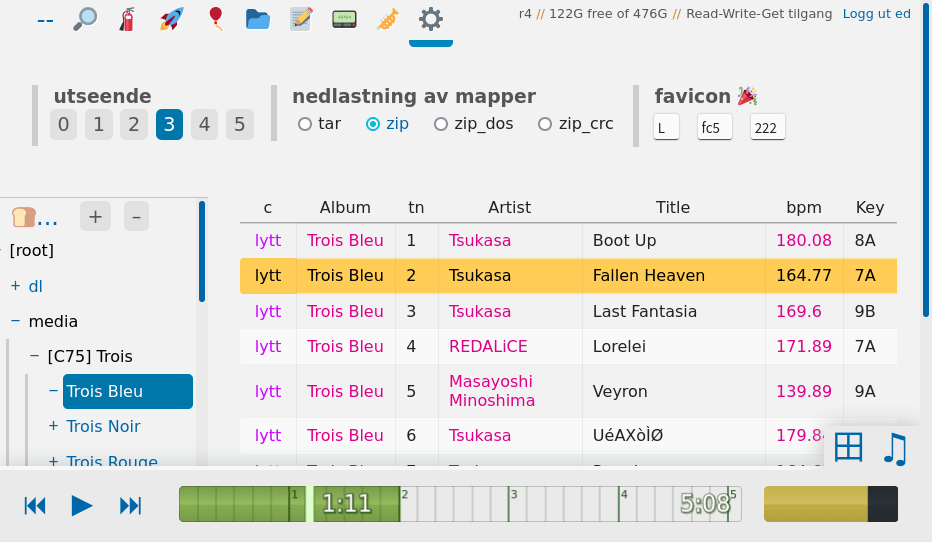 3. flat light
|  5. hotdog stand
 |
the classname of the HTML tag is set according to the selected theme, which is used to set colors as css variables ++
html.a, second theme (2 and 3) is html.bhtml.y is set, otherwise html.z ishtml.b, html.z, html.bz to specify rulessee the top of ./copyparty/web/browser.css where the color variables are set, and there's layout-specific stuff near the bottom
if you want to change the fonts, see ./docs/rice/
see running on windows for a fancy windows setup
or use any of the examples below, just replace python copyparty-sfx.py with copyparty.exe if you're using the exe edition
allow anyone to download or upload files into the current folder:
python copyparty-sfx.py
enable searching and music indexing with -e2dsa -e2ts
start an FTP server on port 3921 with --ftp 3921
announce it on your LAN with -z so it appears in windows/Linux file managers
anyone can upload, but nobody can see any files (even the uploader):
python copyparty-sfx.py -e2dsa -v .::w
block uploads if there's less than 4 GiB free disk space with --df 4
show a popup on new uploads with --xau bin/hooks/notify.py
anyone can upload, and receive "secret" links for each upload they do:
python copyparty-sfx.py -e2dsa -v .::wG:c,fk=8
anyone can browse (r), only kevin (password okgo) can upload/move/delete (A) files:
python copyparty-sfx.py -e2dsa -a kevin:okgo -v .::r:A,kevin
read-only music server:
python copyparty-sfx.py -v /mnt/nas/music:/music:r -e2dsa -e2ts --no-robots --force-js --theme 2
...with bpm and key scanning
-mtp .bpm=f,audio-bpm.py -mtp key=f,audio-key.py
...with a read-write folder for kevin whose password is okgo
-a kevin:okgo -v /mnt/nas/inc:/inc:rw,kevin
...with logging to disk
-lo log/cpp-%Y-%m%d-%H%M%S.txt.xz
become a real webserver which people can access by just going to your IP or domain without specifying a port
if you're on windows or macos, then you just need to add the commandline argument -p 80,443 and you're done! nice
if you're on Linux, you have the following 4 options:
option 1: set up a reverse-proxy -- this one makes a lot of sense if you're running on a proper headless server, because that way you get real HTTPS too
option 2: NAT to port 3923 -- this is cumbersome since you'll need to do it every time you reboot, and the exact command may depend on your linux distribution:
bash
  iptables -t nat -A PREROUTING -p tcp --dport 80 -j REDIRECT --to-port 3923
  iptables -t nat -A PREROUTING -p tcp --dport 443 -j REDIRECT --to-port 3923
option 3: disable the security policy which prevents the use of 80 and 443; this is probably fine:
setcap CAP_NET_BIND_SERVICE=+eip $(realpath $(which python))
  python copyparty-sfx.py -p 80,443
option 4: run copyparty as root (please don't)
running copyparty next to other websites hosted on an existing webserver such as nginx, caddy, or apache
you can either:
* give copyparty its own domain or subdomain (recommended)
* or do location-based proxying, using --rp-loc=/stuff to tell copyparty where it is mounted -- has a slight performance cost and higher chance of bugs
* if copyparty says incorrect --rp-loc or webserver config; expected vpath starting with [...] it's likely because the webserver is stripping away the proxy location from the request URLs -- see the ProxyPass in the apache example below
when running behind a reverse-proxy (this includes services like cloudflare), it is important to configure real-ip correctly, as many features rely on knowing the client's IP. The best/safest approach is to configure your reverse-proxy so it gives copyparty a header which only contains the client's true/real IP-address, and then setting --xff-hdr theHeaderName --rproxy 1 but alternatively, if you want/need to let copyparty handle this, look out for red and yellow log messages which explain how to do that. Basically, the log will say this:
set
--xff-hdrto the name of the http-header to read the IP from (usuallyx-forwarded-for, but cloudflare usescf-connecting-ip), and then--xff-srcto the IP of the reverse-proxy so copyparty will trust the xff-hdr. You will also need to configure--rproxyto1if the header only contains one IP (the correct one) or to a negative value if it contains multiple;-1being the rightmost and most trusted IP (the nearest proxy, so usually not the correct one),-2being the second-closest hop, and so on
Note that --rp-loc in particular will not work at all unless you configure the above correctly
some reverse proxies (such as Caddy) can automatically obtain a valid https/tls certificate for you, and some support HTTP/2 and QUIC which could be a nice speed boost, depending on a lot of factors * warning: nginx-QUIC (HTTP/3) is still experimental and can make uploads much slower, so HTTP/1.1 is recommended for now * depending on server/client, HTTP/1.1 can also be 5x faster than HTTP/2
for improved security (and a 10% performance boost) consider listening on a unix-socket with -i unix:770:www:/dev/shm/party.sock (permission 770 means only members of group www can access it)
example webserver / reverse-proxy configs:
caddy reverse-proxy --from :8080 --to unix///dev/shm/party.sockcaddy reverse-proxy --from :8081 --to http://127.0.0.1:3923teaching copyparty how to see client IPs when running behind a reverse-proxy, or a WAF, or another protection service such as cloudflare
if you (and maybe everybody else) keep getting a message that says thank you for playing, then you've gotten banned for malicious traffic. This ban applies to the IP address that copyparty thinks identifies the shady client -- so, depending on your setup, you might have to tell copyparty where to find the correct IP
for most common setups, there should be a helpful message in the server-log explaining what to do, but see docs/xff.md if you want to learn more, including a quick hack to just make it work (which is not recommended, but hey...)
most reverse-proxies support connecting to copyparty either using uds/unix-sockets (/dev/shm/party.sock, faster/recommended) or using tcp (127.0.0.1)
with copyparty listening on a uds / unix-socket / unix-domain-socket and the reverse-proxy connecting to that:
| index.html | upload | download | software |
|---|---|---|---|
| 28'900 req/s | 6'900 MiB/s | 7'400 MiB/s | no-proxy |
| 18'750 req/s | 3'500 MiB/s | 2'370 MiB/s | haproxy |
| 9'900 req/s | 3'750 MiB/s | 2'200 MiB/s | caddy |
| 18'700 req/s | 2'200 MiB/s | 1'570 MiB/s | nginx |
| 9'700 req/s | 1'750 MiB/s | 1'830 MiB/s | apache |
| 9'900 req/s | 1'300 MiB/s | 1'470 MiB/s | lighttpd |
when connecting the reverse-proxy to 127.0.0.1 instead (the basic and/or old-fasioned way), speeds are a bit worse:
| index.html | upload | download | software |
|---|---|---|---|
| 21'200 req/s | 5'700 MiB/s | 6'700 MiB/s | no-proxy |
| 14'500 req/s | 1'700 MiB/s | 2'170 MiB/s | haproxy |
| 11'100 req/s | 2'750 MiB/s | 2'000 MiB/s | traefik |
| 8'400 req/s | 2'300 MiB/s | 1'950 MiB/s | caddy |
| 13'400 req/s | 1'100 MiB/s | 1'480 MiB/s | nginx |
| 8'400 req/s | 1'000 MiB/s | 1'000 MiB/s | apache |
| 6'500 req/s | 1'270 MiB/s | 1'500 MiB/s | lighttpd |
in summary, haproxy > caddy > traefik > nginx > apache > lighttpd, and use uds when possible (traefik does not support it yet)
if you have a domain and want to get your copyparty online real quick, either from your home-PC behind a CGNAT or from a server without an existing reverse-proxy setup, one approach is to create a Cloudflare Tunnel (formerly "Argo Tunnel")
I'd recommend making a Locally-managed tunnel for more control, but if you prefer to make a Remotely-managed tunnel then this is currently how:
cloudflare dashboard » zero trust » networks » tunnels » create a tunnel » cloudflared » choose a cool subdomain and leave the path blank, and use service type = http and URL = 127.0.0.1:3923
and if you want to just run the tunnel without installing it, skip the cloudflared service install BASE64 step and instead do cloudflared --no-autoupdate tunnel run --token BASE64
NOTE: since people will be connecting through cloudflare, as mentioned in real-ip you should run copyparty with --xff-hdr cf-connecting-ip to detect client IPs correctly
config file example:
[global]
  xff-hdr: cf-connecting-ip
metrics/stats can be enabled at URL /.cpr/metrics for grafana / prometheus / etc (openmetrics 1.0.0)
must be enabled with --stats since it reduces startup time a tiny bit, and you probably want -e2dsa too
the endpoint is only accessible by admin accounts, meaning the a in rwmda in the following example commandline: python3 -m copyparty -a ed:wark -v /mnt/nas::rwmda,ed --stats -e2dsa
follow a guide for setting up node_exporter except have it read from copyparty instead; example /etc/prometheus/prometheus.yml below
scrape_configs:
  - job_name: copyparty
    metrics_path: /.cpr/metrics
    basic_auth:
      password: wark
    static_configs:
      - targets: ['192.168.123.1:3923']
currently the following metrics are available,
* cpp_uptime_seconds time since last copyparty restart
* cpp_boot_unixtime_seconds same but as an absolute timestamp
* cpp_active_dl number of active downloads
* cpp_http_conns number of open http(s) connections
* cpp_http_reqs number of http(s) requests handled
* cpp_sus_reqs number of 403/422/malicious requests
* cpp_active_bans number of currently banned IPs
* cpp_total_bans number of IPs banned since last restart
these are available unless --nos-vst is specified:
* cpp_db_idle_seconds time since last database activity (upload/rename/delete)
* cpp_db_act_seconds same but as an absolute timestamp
* cpp_idle_vols number of volumes which are idle / ready
* cpp_busy_vols number of volumes which are busy / indexing
* cpp_offline_vols number of volumes which are offline / unavailable
* cpp_hashing_files number of files queued for hashing / indexing
* cpp_tagq_files number of files queued for metadata scanning
* cpp_mtpq_files number of files queued for plugin-based analysis
and these are available per-volume only:
* cpp_disk_size_bytes total HDD size
* cpp_disk_free_bytes free HDD space
and these are per-volume and total:
* cpp_vol_bytes size of all files in volume
* cpp_vol_files number of files
* cpp_dupe_bytes disk space presumably saved by deduplication
* cpp_dupe_files number of dupe files
* cpp_unf_bytes currently unfinished / incoming uploads
some of the metrics have additional requirements to function correctly,
* cpp_vol_* requires either the e2ds volflag or -e2dsa global-option
the following options are available to disable some of the metrics:
* --nos-hdd disables cpp_disk_* which can prevent spinning up HDDs
* --nos-vol disables cpp_vol_* which reduces server startup time
* --nos-vst disables volume state, reducing the worst-case prometheus query time by 0.5 sec
* --nos-dup disables cpp_dupe_* which reduces the server load caused by prometheus queries
* --nos-unf disables cpp_unf_* for no particular purpose
note: the following metrics are counted incorrectly if multiprocessing is enabled with -j: cpp_http_conns, cpp_http_reqs, cpp_sus_reqs, cpp_active_bans, cpp_total_bans
you'll never find a use for these:
change the association of a file extension
using commandline args, you can do something like --mime gif=image/jif and --mime ts=text/x.typescript (can be specified multiple times)
in a config file, this is the same as:
[global]
  mime: gif=image/jif
  mime: ts=text/x.typescript
run copyparty with --mimes to list all the default mappings
imagine using copyparty professionally... TINLA/IANAL; EU laws are hella confusing
remember to disable logging, or configure logrotation to an acceptable timeframe with -lo cpp-%Y-%m%d.txt.xz or similar
if running with the database enabled (recommended), then have it forget uploader-IPs after some time using --forget-ip 43200
don't set it too low; unposting a file is no longer possible after this takes effect
if you actually are a lawyer then I'm open for feedback, would be fun
buggy feature? rip it out by setting any of the following environment variables to disable its associated bell or whistle,
| env-var | what it does |
|---|---|
PRTY_NO_CTYPES |
do not use features from external libraries such as kernel32 |
PRTY_NO_DB_LOCK |
do not lock session/shares-databases for exclusive access |
PRTY_NO_ENVEXPAND |
do not expand environment-variables in configs and args |
PRTY_NO_IFADDR |
disable ip/nic discovery by poking into your OS with ctypes |
PRTY_NO_IMPRESO |
do not try to load js/css files using importlib.resources |
PRTY_NO_IPV6 |
disable some ipv6 support (should not be necessary since windows 2000) |
PRTY_NO_LZMA |
disable streaming xz compression of incoming uploads |
PRTY_NO_MP |
disable all use of the python multiprocessing module (actual multithreading, cpu-count for parsers/thumbnailers) |
PRTY_NO_UNIDATA |
disable loading the unicodedata c-extension; saves 400k ram, breaks --srch-nfkc |
PRTY_NO_SQLITE |
disable all database-related functionality (file indexing, metadata indexing, most file deduplication logic) |
PRTY_NO_TLS |
disable native HTTPS support; if you still want to accept HTTPS connections then TLS must now be terminated by a reverse-proxy |
PRTY_NO_TPOKE |
disable systemd-tmpfilesd avoider |
PRTY_UNSAFE_STATE |
allow storing secrets into emergency-fallback locations |
example: PRTY_NO_IFADDR=1 python3 copyparty-sfx.py
force-enable features with known issues on your OS/env by setting any of the following environment variables, also affectionately known as fuckitbits or hail-mary-bits
| env-var | what it does |
|---|---|
PRTY_FORCE_MP |
force-enable multiprocessing (real multithreading) on MacOS and other broken platforms |
PRTY_FORCE_MAGIC |
use magic on Windows (you will segfault) |
the party might be closer than you think
if your distro/OS is not mentioned below, there might be some hints in the «on servers» section
pacman -S copyparty (in arch linux extra)
it comes with a systemd service as well as a user service, and expects to find a config file in /etc/copyparty/copyparty.conf or ~/.config/copyparty/copyparty.conf
after installing, start either the system service or the user service and navigate to http://127.0.0.1:3923 for further instructions (unless you already edited the config files, in which case you are good to go, probably)
to start the systemd service, either do
systemctl start --user copypartyto start it as your own user, orsystemctl start copyparty@bobto use unix-userbob
does not exist yet; there are rumours that it is being packaged! keep an eye on this space...
emerge www-servers/copyparty::guru (in ::guru)
but first enable the ::guru repo;
emerge -an app-eselect/eselect-repository
eselect repository enable guru
emerge --sync guru
to start the service as a user:
* OpenRC: rc-service -U copyparty start && rc-update -U add copyparty default
* systemd: [todo]
brew install copyparty ffmpeg -- https://formulae.brew.sh/formula/copyparty
should work on all macs (both intel and apple silicon) and all relevant macos versions
the homebrew package is maintained by the homebrew team (thanks!)
nix profile install github:9001/copyparty
requires a flake-enabled installation of nix
some recommended dependencies are enabled by default; override the package if you want to add/remove some features/deps
for flake-enabled installations of NixOS:
{
  # add copyparty flake to your inputs
  inputs.copyparty.url = "github:9001/copyparty";

  # ensure that copyparty is an allowed argument to the outputs function
  outputs = { self, nixpkgs, copyparty }: {
    nixosConfigurations.yourHostName = nixpkgs.lib.nixosSystem {
      modules = [
        # load the copyparty NixOS module
        copyparty.nixosModules.default
        ({ pkgs, ... }: {
          # add the copyparty overlay to expose the package to the module
          nixpkgs.overlays = [ copyparty.overlays.default ];
          # (optional) install the package globally
          environment.systemPackages = [ pkgs.copyparty ];
          # configure the copyparty module
          services.copyparty.enable = true;
        })
      ];
    };
  };
}
if you don't use a flake in your configuration, you can use other dependency management tools like npins, niv, or even plain fetchTarball, like so:
{ pkgs, ... }:

let
  # npins example, adjust for your setup. copyparty should be a path to the downloaded repo
  # for niv, just replace the npins folder import with the sources.nix file
  copyparty = (import ./npins).copyparty;

  # or with fetchTarball:
  copyparty = fetchTarball "https://github.com/9001/copyparty/archive/hovudstraum.tar.gz";
in

{
  # load the copyparty NixOS module
  imports = [ "${copyparty}/contrib/nixos/modules/copyparty.nix" ];

  # add the copyparty overlay to expose the package to the module
  nixpkgs.overlays = [ (import "${copyparty}/contrib/package/nix/overlay.nix") ];
  # (optional) install the package globally
  environment.systemPackages = [ pkgs.copyparty ];
  # configure the copyparty module
  services.copyparty.enable = true;
}
copyparty on NixOS is configured via services.copyparty options, for example:
services.copyparty = {
  enable = true;
  # the user to run the service as
  user = "copyparty";
  # the group to run the service as
  group = "copyparty";
  # directly maps to values in the [global] section of the copyparty config.
  # see `copyparty --help` for available options
  settings = {
    i = "0.0.0.0";
    # use lists to set multiple values
    p = [ 3210 3211 ];
    # use booleans to set binary flags
    no-reload = true;
    # using 'false' will do nothing and omit the value when generating a config
    ignored-flag = false;
  };

  # create users
  accounts = {
    # specify the account name as the key
    ed = {
      # provide the path to a file containing the password, keeping it out of /nix/store
      # must be readable by the copyparty service user
      passwordFile = "/run/keys/copyparty/ed_password";
    };
    # or do both in one go
    k.passwordFile = "/run/keys/copyparty/k_password";
  };

  # create a group
  groups = {
    # users "ed" and "k" are part of the group g1
    g1 = [ "ed" "k" ];
  };

  # create a volume
  volumes = {
    # create a volume at "/" (the webroot), which will
    "/" = {
      # share the contents of "/srv/copyparty"
      path = "/srv/copyparty";
      # see `copyparty --help-accounts` for available options
      access = {
        # everyone gets read-access, but
        r = "*";
        # users "ed" and "k" get read-write
        rw = [ "ed" "k" ];
      };
      # see `copyparty --help-flags` for available options
      flags = {
        # "fk" enables filekeys (necessary for upget permission) (4 chars long)
        fk = 4;
        # scan for new files every 60sec
        scan = 60;
        # volflag "e2d" enables the uploads database
        e2d = true;
        # "d2t" disables multimedia parsers (in case the uploads are malicious)
        d2t = true;
        # skips hashing file contents if path matches *.iso
        nohash = "\.iso$";
      };
    };
  };
  # you may increase the open file limit for the process
  openFilesLimit = 8192;

  # override the package used by the module to add dependencies, e.g. for hooks
  package = pkgs.copyparty.override {
    # provides exiftool for bin/hooks/image-noexif.py
    extraPackages = [ pkgs.exiftool ];
  };
};
the passwordFile at /run/keys/copyparty/ could for example be generated by agenix, or you could just dump it in the nix store instead if that's acceptable
TLDR: yes

ie = internet-explorer, ff = firefox, c = chrome, iOS = iPhone/iPad, Andr = Android
| feature | ie6 | ie9 | ie10 | ie11 | ff 52 | c 49 | iOS | Andr |
|---|---|---|---|---|---|---|---|---|
| browse files | yep | yep | yep | yep | yep | yep | yep | yep |
| thumbnail view | - | yep | yep | yep | yep | yep | yep | yep |
| basic uploader | yep | yep | yep | yep | yep | yep | yep | yep |
| up2k | - | - | *1 |
*1 |
yep | yep | yep | yep |
| make directory | yep | yep | yep | yep | yep | yep | yep | yep |
| send message | yep | yep | yep | yep | yep | yep | yep | yep |
| set sort order | - | yep | yep | yep | yep | yep | yep | yep |
| zip selection | - | yep | yep | yep | yep | yep | yep | yep |
| file search | - | yep | yep | yep | yep | yep | yep | yep |
| file rename | - | yep | yep | yep | yep | yep | yep | yep |
| file cut/paste | - | yep | yep | yep | yep | yep | yep | yep |
| unpost uploads | - | - | yep | yep | yep | yep | yep | yep |
| navpane | - | yep | yep | yep | yep | yep | yep | yep |
| image viewer | - | yep | yep | yep | yep | yep | yep | yep |
| video player | - | yep | yep | yep | yep | yep | yep | yep |
| markdown editor | - | - | *2 |
*2 |
yep | yep | yep | yep |
| markdown viewer | - | *2 |
*2 |
*2 |
yep | yep | yep | yep |
| play mp3/m4a | - | yep | yep | yep | yep | yep | yep | yep |
| play ogg/opus | - | - | - | - | yep | yep | *3 |
yep |
| = feature = | ie6 | ie9 | ie10 | ie11 | ff 52 | c 49 | iOS | Andr |
*1 yes, but extremely slow (ie10: 1 MiB/s, ie11: 270 KiB/s)*2 only able to do plaintext documents (no markdown rendering)*3 iOS 11 and newer, opus only, and requires FFmpeg on the serverquick summary of more eccentric web-browsers trying to view a directory index:
| browser | will it blend |
|---|---|
| links (2.21/macports) | can browse, login, upload/mkdir/msg |
| lynx (2.8.9/macports) | can browse, login, upload/mkdir/msg |
| w3m (0.5.3/macports) | can browse, login, upload at 100kB/s, mkdir/msg |
| netsurf (3.10/arch) | is basically ie6 with much better css (javascript has almost no effect) |
| opera (11.60/winxp) | OK: thumbnails, image-viewer, zip-selection, rename/cut/paste. NG: up2k, navpane, markdown, audio |
| ie4 and netscape 4.0 | can browse, upload with ?b=u, auth with &pw=wark |
| ncsa mosaic 2.7 | does not get a pass, pic1 - pic2 |
| SerenityOS (7e98457) | hits a page fault, works with ?b=u, file upload not-impl |
| sony psp 5.50 | can browse, upload/mkdir/msg (thx dwarf) screenshot |
| nintendo 3ds | can browse, upload, view thumbnails (thx bnjmn) |
| Nintendo Wii (Opera 9.0 "Internet Channel") | can browse, can't upload or download (no local storage), can view images - works best with ?b=u, default view broken |
unexpected things that run copyparty:
interact with copyparty using non-browser clients
await fetch('//127.0.0.1:3923/', {method:"PUT", body: JSON.stringify(foo)});var xhr = new XMLHttpRequest(); xhr.open('POST', '//127.0.0.1:3923/msgs?raw'); xhr.send('foo');
curl/wget: upload some files (post=file, chunk=stdin)
post(){ curl -F f=@"$1" http://127.0.0.1:3923/?pw=wark;}post movie.mkv (gives HTML in return)post(){ curl -F f=@"$1" 'http://127.0.0.1:3923/?want=url&pw=wark';}post movie.mkv (gives hotlink in return)post(){ curl -H pw:wark -H rand:8 -T "$1" http://127.0.0.1:3923/;}post movie.mkv (randomized filename)post(){ wget --header='pw: wark' --post-file="$1" -O- http://127.0.0.1:3923/?raw;}post movie.mkvchunk(){ curl -H pw:wark -T- http://127.0.0.1:3923/;}
chunk <movie.mkv
curl: append to existing file with ?apnd
log(){ curl -H pw:wark -T- http://127.0.0.1:3923/logfile.txt?apnd;}
echo hey | log
bash: when curl and wget is not available or too boring
(printf 'PUT /junk?pw=wark HTTP/1.1\r\n\r\n'; cat movie.mkv) | nc 127.0.0.1 3923(printf 'PUT / HTTP/1.1\r\n\r\n'; cat movie.mkv) >/dev/tcp/127.0.0.1/3923
FUSE: mount a copyparty server as a local filesystem
rclone as client can give ~5x performance, see ./docs/rclone.md
sharex (screenshot utility): see ./contrib/sharex.sxcu
and for screenshots on linux, see ./contrib/flameshot.sh
Custom Uploader (an Android app) as an alternative to copyparty's own PartyUP!
works if you set UploadURL to https://your.com/foo/?want=url&pw=hunter2 and FormDataName f
contextlet (web browser integration); see contrib contextlet
igloo irc: Method: post Host: https://you.com/up/?want=url&pw=hunter2 Multipart: yes File parameter: f
copyparty returns a truncated sha512sum of your PUT/POST as base64; you can generate the same checksum locally to verify uploads:
b512(){ printf "$((sha512sum||shasum -a512)|sed -E 's/ .*//;s/(..)/\\x\1/g')"|base64|tr '+/' '-_'|head -c44;}
b512 <movie.mkv
you can provide passwords using header PW: hunter2, cookie cppwd=hunter2, url-param ?pw=hunter2, or with basic-authentication (either as the username or password)
for basic-authentication, all of the following are accepted:
password/whatever:password/password:whatever(the username is ignored)
--usernames, then it's PW: usr:pwd, cookie cppwd=usr:pwd, url-param ?pw=usr:pwdNOTE: curl will not send the original filename if you use -T combined with url-params! Also, make sure to always leave a trailing slash in URLs unless you want to override the filename
sync folders to/from copyparty
NOTE: full bidirectional sync, like what nextcloud and syncthing does, will never be supported! Only single-direction sync (server-to-client, or client-to-server) is possible with copyparty
the commandline uploader u2c.py with --dr is the best way to sync a folder to copyparty; verifies checksums and does files in parallel, and deletes unexpected files on the server after upload has finished which makes file-renames really cheap (it'll rename serverside and skip uploading)
if you want to sync with u2c.py then:
* the e2dsa option (either globally or volflag) must be enabled on the server for the volumes you're syncing into
* ...but DON'T enable global-options no-hash or no-idx (or volflags nohash / noidx), or at least make sure they are configured so they do not affect anything you are syncing into
* ...and u2c needs the delete-permission, so either rwd at minimum, or just A which is the same as rwmd.a
* quick reminder that a and A are different permissions, and . is very useful for sync
alternatively there is rclone which allows for bidirectional sync and is way more flexible (stream files straight from sftp/s3/gcs to copyparty, ...), although there is no integrity check and it won't work with files over 100 MiB if copyparty is behind cloudflare
a remote copyparty server as a local filesystem; go to the control-panel and click connect to see a list of commands to do that
alternatively, some alternatives roughly sorted by speed (unreproducible benchmark), best first:
most clients will fail to mount the root of a copyparty server unless there is a root volume (so you get the admin-panel instead of a browser when accessing it) -- in that case, mount a specific volume instead
if you have volumes that are accessible without a password, then some webdav clients (such as davfs2) require the global-option --dav-auth to access any password-protected areas
upload to copyparty with one tap
 ''
''  ''
'' 
the app is NOT the full copyparty server! just a basic upload client, nothing fancy yet
if you want to run the copyparty server on your android device, see install on android
there is no iPhone app, but the following shortcuts are almost as good:
if you want to run the copyparty server on your iPhone or iPad, see install on iOS
defaults are usually fine - expect 8 GiB/s download, 1 GiB/s upload
below are some tweaks roughly ordered by usefulness:
-q disables logging and can help a bunch, even when combined with -lo to redirect logs to file--hist pointing to a fast location (ssd) will make directory listings and searches faster when -e2d or -e2t is set--dedup enables deduplication and thus avoids writing to the HDD if someone uploads a dupe--safe-dedup 1 makes deduplication much faster during upload by skipping verification of file contents; safe if there is no other software editing/moving the files in the volumes--no-dirsz shows the size of folder inodes instead of the total size of the contents, giving about 30% faster folder listings--no-hash . when indexing a network-disk if you don't care about the actual filehashes and only want the names/tags searchable--iobuf and/or --s-rd-sz and/or --s-wr-sz may help; try setting all of them to 524288 or 1048576 or 4194304--no-htp --hash-mt=0 --mtag-mt=1 --th-mt=1 minimizes the number of threads; can help in some eccentric environments (like the vscode debugger)apk add mimalloc2 and run copyparty with env-var LD_PRELOAD=/usr/lib/libmimalloc-secure.so.2/proc and /sys otherwise you'll encounter issues with FFmpeg (audio transcoding, thumbnails)-j0 (usually not recommended) enables multiprocessing (actual multithreading), can reduce latency to 20+80/numCores percent and generally improve performance in cpu-intensive workloads, for example:-e2d is enabled, -j2 gives 4x performance for directory listings; -j4 gives 16x...however it will probably reduce performance in most cases, since it also increases the server/filesystem/HDD load during uploads, and adds an overhead to internal communication, so keeping the default is generally best
* using pypy instead of cpython can be 70% faster for some workloads, but slower for many others
* and pypy can sometimes crash on startup with -j0 (TODO make issue)
--casechk=n makes it much faster, but also awakens the usual surprises you expect from a case-insensitive filesystemcasechk: n in a config-filewhen uploading files,
[wasm] in the [⚙️] settings tab to more effectively use all CPU-cores for hashingcan be made default-enabled serverside with --nosubtle 137 (chrome v137+) or --nosubtle 2 (chrome+firefox)
chrome is recommended (unfortunately), at least compared to firefox:
but u2c.py can be 40% faster than chrome again
if you're cpu-bottlenecked, or the browser is maxing a cpu core:
[🚀] up2k ui-tab (or closing it)[🥔]there is a discord server with announcements ; an @everyone for all important updates (at the lack of better ideas)
some notes on hardening
--rproxy 0 if and only if your copyparty is directly facing the internet (not through a reverse-proxy)nohtmlnohtml volflag also enables noscript which, on its own, prevents most javascript from running; enabling just noscript without nohtml makes it probably-safe (see below) to view html and svg files, but nohtml is necessary to block javascript in markdown documentsContent-Security-Policy so it depends on the reverseproxy to forward it, and the browser to understand it, but nohtml (the nuclear option) always works--help-bind--use-bwrap y--th-bwrap (see --help on your own server) is autogenerated best-effort guess based on your setup; installing bwrap and configuring this is up to you (good luck)safety profiles:
-s is a shortcut to set the following options:--no-thumb disables thumbnails and audio transcoding to stop copyparty from running FFmpeg/Pillow/VIPS on uploaded files, which is a good idea if anonymous upload is enabled--no-mtag-ff uses mutagen to grab music tags instead of FFmpeg, which is safer and faster but less accurate--dotpart hides uploads from directory listings while they're still incoming--no-robots and --force-js makes life harder for crawlers, see hiding from google
option -ss is a shortcut for the above plus:
--unpost 0, --no-del, --no-mv disables all move/delete support--hardlink creates hardlinks instead of symlinks when deduplicating uploads, which is less maintenance--vague-403 returns a "404 not found" instead of "401 unauthorized" which is a common enterprise meme-nih removes the server hostname from directory listings
option -sss is a shortcut for the above plus:
--no-dav disables webdav support--no-logues and --no-readme disables support for readme's and prologues / epilogues in directory listings, which otherwise lets people upload arbitrary (but sandboxed) <script> tags-lo cpp-%Y-%m%d-%H%M%S.txt.xz enables logging to disk-ls **,*,ln,p,r does a scan on startup for any dangerous symlinksother misc notes:
g instead of r, only accepting direct URLs to filesh instead of r makes copyparty behave like a traditional webserver with directory listing/index disabled, returning index.html insteadbehavior that might be unexpected
.prologue.html / .epilogue.html / PREADME.md / README.md contents, for the purpose of showing a description on how to use the uploader for example<script>s which autorun (in a sandbox) for other visitors in a few ways;README.md -- avoid with --no-readmesome.html to .epilogue.html -- avoid with either --no-logues or --no-dot-ren<script>s; attempts are made to prevent scripts from executing (unless -emp is specified) but this is not 100% bulletproof, so setting the nohtml volflag is still the safest choiceunauthorized javascript is blocked by means of the default content-security-policy which enforces "script nonces", to help prevent XSS and similar
usually this Just Works and is correctly configured by default; you can stop reading this section and move on, nothing to see here
but if you are the unlucky 0.1% with a hosting-setup funky enough for this to not work as intended, then you will also be seeing this message: Looks like javascript is broken; see "csp nonce" in the readme
there is two possible reasons why this might happen:
your browser is simply too old to understand the javascript, which is not likely, because just about every browser is supported, even internet explorer 11
something in your hosting-setup is tampering with the responses from copyparty and destroying this security feature; the culprit is probably a misconfigured reverseproxy, a CDN, a WAF, or some other mitm, but a popular offender is "cloudflare rocket loader"
you can try to temporarily set global-options --csp-ui no and --csp-dl no and restart copyparty to check whether it is due to reason #2. Remember to refresh the webbrowser with CTRL-SHIFT-R to check properly. If that makes the problem go away, then turn them back off (never keep them enabled), restart copyparty, open the Network tab in the webbrowser, and refresh the website; you should see the content-security-policy header including a nonce, for example nonce-BxcJbvdu1z3S/ycPBjVWuA== which should also appear inside the HTML of that response like this: <script nonce="BxcJbvdu1z3S/ycPBjVWuA=="> -- if it doesn't then that's the problem; something in your hosting stack is dangerously misconfigured
cross-site request config
by default, except for GET and HEAD operations, all requests must either:
* not contain an Origin header at all
* or have an Origin matching the server domain
* or the header PW with your password as value
cors can be configured with --acao and --acam, or the protections entirely disabled with --allow-csrf
prevent filename bruteforcing
volflag fk generates filekeys (per-file accesskeys) for all files; users which have full read-access (permission r) will then see URLs with the correct filekey ?k=... appended to the end, and g users must provide that URL including the correct key to avoid a 404
by default, filekeys are generated based on salt (--fk-salt) + filesystem-path + file-size + inode (if not windows); add volflag fka to generate slightly weaker filekeys which will not be invalidated if the file is edited (only salt + path)
permissions wG (write + upget) lets users upload files and receive their own filekeys, still without being able to see other uploads
share specific folders in a volume without giving away full read-access to the rest -- the visitor only needs the g (get) permission to view the link
ℹ️ a better alternative to this is shares
volflag dk generates dirkeys (per-directory accesskeys) for all folders, granting read-access to that folder; by default only that folder itself, no subfolders
volflag dky disables the actual key-check, meaning anyone can see the contents of a folder where they have g access, but not its subdirectories
dk + dky gives the same behavior as if all users with g access have full read-access, but subfolders are hidden files (as if their names start with a dot), so dky is an alternative to renaming all the folders for that purpose, maybe just for some usersvolflag dks lets people enter subfolders as well, and also enables download-as-zip/tar
if you enable dirkeys, it is probably a good idea to enable filekeys too, otherwise it will be impossible to hotlink files from a folder which was accessed using a dirkey
dirkeys are generated based on another salt (--dk-salt) + filesystem-path and have a few limitations:
* the key does not change if the contents of the folder is modified
* if you need a new dirkey, either change the salt or rename the folder
* linking to a textfile (so it opens in the textfile viewer) is not possible if recipient doesn't have read-access
you can hash passwords before putting them into config files / providing them as arguments; see --help-pwhash for all the details
--ah-alg argon2 enables it, and if you have any plaintext passwords then it'll print the hashed versions on startup so you can replace them
optionally also specify --ah-cli to enter an interactive mode where it will hash passwords without ever writing the plaintext ones to disk
the default configs take about 0.4 sec and 256 MiB RAM to process a new password on a decent laptop
when generating hashes using --ah-cli for docker or systemd services, make sure it is using the same --ah-salt by:
* inspecting the generated salt using --show-ah-salt in copyparty service configuration
* setting the same --ah-salt in both environments
⚠️ if you have enabled
--usernamesthen provide the password asusername:passwordwhen hashing it, for exampleed:hunter2
both HTTP and HTTPS are accepted by default, but please ignore copyparty's built-in https/tls support and instead use a reverse proxy to handle https/tls/ssl
if cfssl is installed, copyparty will automatically create a CA and server-cert on startup
* the certs are written to --crt-dir for distribution, see --help for the other --crt options
* this will be a self-signed certificate so you must install your ca.pem into all your browsers/devices
* if you want to avoid the hassle of distributing certs manually, please consider using a reverse proxy
to install cfssl on windows:
* download cfssl_windows_amd64.exe, cfssljson_windows_amd64.exe, cfssl-certinfo_windows_amd64.exe
* rename them to cfssl.exe, cfssljson.exe, cfssl-certinfo.exe
* put them in PATH, for example inside c:\windows\system32
if you really wanna give copyparty an existing TLS certificate then do one of the following:
* --no-crt --cert server.pem where server.pem is a concatenation of key + cert + chain (in that order), or...
* --no-crt --cert server.crt --certkey server.key where server.key is the key, and server.crt is a concatenation of cert + chain (in that order)
* file-extensions don't matter, but all files are expected to be PEM-style
firefox 87 can crash during uploads -- the entire browser goes, including all other browser tabs, everything turns white
however you can hit F12 in the up2k tab and use the devtools to see how far you got in the uploads:
get a complete list of all uploads, organized by status (ok / no-good / busy / queued):
var tabs = { ok:[], ng:[], bz:[], q:[] }; for (var a of up2k.ui.tab) tabs[a.in].push(a); tabs
list of filenames which failed:
var ng = []; for (var a of up2k.ui.tab) if (a.in != 'ok') ng.push(a.hn.split('<a href=\"').slice(-1)[0].split('\">')[0]); ng
send the list of filenames to copyparty for safekeeping:
await fetch('/inc', {method:'PUT', body:JSON.stringify(ng,null,1)})
see devnotes
mandatory deps:
* jinja2 (is built into the SFX)
enable bonus features by installing these python-packages from pypi or so:
enable hashed passwords in config: argon2-cffi
enable ftp-server:
* for just plaintext FTP, pyftpdlib (is built into the SFX)
* with TLS encryption, pyftpdlib pyopenssl
enable sftp-server: paramiko
enable music tags:
* either mutagen (fast, pure-python, skips a few tags, makes copyparty GPL? idk)
* or ffprobe (20x slower, more accurate, possibly dangerous depending on your distro and users)
enable thumbnails of...
* images: Pillow and/or pyvips and/or ffmpeg (requires py2.7 or py3.5+)
* videos/audio: ffmpeg and ffprobe somewhere in $PATH
* HEIF pictures: pyvips or ffmpeg or pillow-heif
* AVIF pictures: pyvips or ffmpeg or pillow-avif-plugin or pillow v11.3+
* JPEG XL pictures: pyvips or ffmpeg
* RAW photos: either libraw dcraw_emu or rawpy, plus either pyvips or Pillow
enable sending zeromq messages from event-hooks: pyzmq
enable smb support (not recommended): impacket==0.13.0
pyvips adds support for some additional image formats, but can use extreme amounts of RAM
* to install pyvips on Linux: sudo apt install libvips42 && python3 -m pip install --user -U pyvips
* to install pyvips on windows: pip install --user -U "pyvips[binary]"
to install FFmpeg on Windows, grab a recent build -- you need ffmpeg.exe and ffprobe.exe from inside the bin folder; copy them into C:\Windows\System32 or any other folder that's in your %PATH%
if your ffmpeg/ffprobe binaries have nonstandard names -- such as ffmpeg8 (macports) -- set environment variables PRTY_FFMPEG_BIN and PRTY_FFPROBE_BIN to the corret name (or full path)
prevent loading an optional dependency , for example if:
set any of the following environment variables to disable its associated optional feature,
| env-var | what it does |
|---|---|
PRTY_NO_ARGON2 |
disable argon2-cffi password hashing |
PRTY_NO_CFSSL |
never attempt to generate self-signed certificates using cfssl |
PRTY_NO_DCRAW |
disable all libraw-based thumbnail support for RAW images |
PRTY_NO_FFMPEG |
audio transcoding goes byebye, thumbnailing must be handled by Pillow/libvips |
PRTY_NO_FFPROBE |
audio transcoding goes byebye, thumbnailing must be handled by Pillow/libvips, metadata-scanning must be handled by mutagen |
PRTY_NO_MAGIC |
do not use magic for filetype detection |
PRTY_NO_MUTAGEN |
do not use mutagen for reading metadata from media files; will fallback to ffprobe |
PRTY_NO_PARAMIKO |
disable sftp server (paramiko-based) |
PRTY_NO_PARTFTPY |
disable tftp server (partftpy-based) |
PRTY_NO_PIL |
disable all Pillow-based thumbnail support; will fallback to libvips or ffmpeg |
PRTY_NO_PILF |
disable Pillow ImageFont text rendering, used for folder thumbnails |
PRTY_NO_PIL_AVIF |
disable Pillow avif support (internal and/or plugin) |
PRTY_NO_PIL_HEIF |
disable 3rd-party Pillow plugin for HEIF support |
PRTY_NO_PIL_JXL |
disable 3rd-party Pillow plugin for JXL support |
PRTY_NO_PIL_WEBP |
disable use of native webp support in Pillow |
PRTY_NO_PSUTIL |
do not use psutil for reaping stuck hooks and plugins on Windows |
PRTY_NO_PYFTPD |
disable ftp(s) server (pyftpdlib-based) |
PRTY_NO_RAW |
same as PRTY_NO_DCRAW plus PRTY_NO_RAWPY |
PRTY_NO_RAWPY |
disable all rawpy-based thumbnail support for RAW images |
PRTY_NO_VIPS |
disable all libvips-based thumbnail support; will fallback to Pillow or ffmpeg |
example: PRTY_NO_PIL=1 python3 copyparty-sfx.py
PRTY_NO_PIL saves ramPRTY_NO_VIPS saves ram and startup timePRTY_NO_FFMPEG + PRTY_NO_FFPROBE saves startup timeforce use of system modules instead of the vendored versions:
| env-var | what it does |
|---|---|
PRTY_SYS_ALL |
all of the below |
PRTY_SYS_DNSLIB |
replace stolen/dnslib with upstream |
PRTY_SYS_IFADDR |
replace stolen/ifaddr with upstream |
PRTY_SYS_QRCG |
replace stolen/qrcodegen.py with upstream |
to debug, run copyparty with PRTY_MODSPEC=1 to see where it's getting each module from
some bundled tools have copyleft dependencies, see ./bin/#mtag
these are standalone programs and will never be imported / evaluated by copyparty, and must be enabled through -mtp configs
the self-contained "binary" (recommended!) copyparty-sfx.py will unpack itself and run copyparty, assuming you have python installed of course
if you only need english, copyparty-en.py is the same thing but smaller
you can reduce the sfx size by repacking it; see ./docs/devnotes.md#sfx-repack
download copyparty.exe (win8+) or copyparty32.exe (win7+)

can be convenient on machines where installing python is problematic, however is not recommended -- if possible, please use copyparty-sfx.py instead
copyparty.exe runs on win8 or newer, was compiled on win10, does thumbnails + media tags, and is currently safe to use, but any future python/expat/pillow CVEs can only be remedied by downloading a newer version of the exe
on win8 it needs vc redist 2015, on win10 it just works
some antivirus may freak out (false-positive), possibly Avast, AVG, and McAfee
dangerous: copyparty32.exe is compatible with windows7, which means it uses an ancient copy of python (3.7.9) which cannot be upgraded and should never be exposed to the internet (LAN is fine)
dangerous and deprecated: copyparty-winpe64.exe lets you run copyparty in WinPE and is otherwise completely useless
meanwhile copyparty-sfx.py instead relies on your system python which gives better performance and will stay safe as long as you keep your python install up-to-date
then again, if you are already into downloading shady binaries from the internet, you may also want my minimal builds of ffmpeg and ffprobe which enables copyparty to extract multimedia-info, do audio-transcoding, and thumbnails/spectrograms/waveforms, however it's much better to instead grab a recent official build every once ina while if you can afford the size
another emergency alternative, copyparty.pyz has less features, is slow, requires python 3.7 or newer, worse compression, and more importantly is unable to benefit from more recent versions of jinja2 and such (which makes it less secure)... lots of drawbacks with this one really -- but, unlike the sfx, it is a completely normal zipfile which does not unpack any temporary files to disk, so it may just work if the regular sfx fails to start because the computer is messed up in certain funky ways, so it's worth a shot if all else fails
run it by doubleclicking it, or try typing python copyparty.pyz in your terminal/console/commandline/telex if that fails
it is a python zipapp meaning it doesn't have to unpack its own python code anywhere to run, so if the filesystem is busted it has a better chance of getting somewhere
there is also copyparty-en.pyz, english-only and without smb support (enterprise-friendly)
install Termux + its companion app Termux:API (see ocv.me/termux) and then copy-paste this into Termux (long-tap) all at once:
yes | pkg upgrade && termux-setup-storage && yes | pkg install python termux-api && python -m ensurepip && python -m pip install --user -U copyparty && { grep -qE 'PATH=.*\.local/bin' ~/.bashrc 2>/dev/null || { echo 'PATH="$HOME/.local/bin:$PATH"' >> ~/.bashrc && . ~/.bashrc; }; }
echo $?
after the initial setup, you can launch copyparty at any time by running copyparty anywhere in Termux -- and if you run it with --qr you'll get a neat qr-code pointing to your external ip
if you want thumbnails (photos+videos) and you're okay with spending another 132 MiB of storage, pkg install ffmpeg && python3 -m pip install --user -U pillow
vips for photo-thumbs instead, pkg install libvips && python -m pip install --user -U wheel && python -m pip install --user -U pyvips && (cd /data/data/com.termux/files/usr/lib/; ln -s libgobject-2.0.so{,.0}; ln -s libvips.so{,.42})if you are suddenly unable to access storage (permission issues), try forcequitting termux, revoke all of its permissions in android settings, and run the command termux-setup-storage
first install one of the following: * a-Shell mini gives you the essential features * a-Shell also enables audio transcoding and better thubmnails
and then copypaste the following command into a-Shell:
curl -L https://github.com/9001/copyparty/raw/refs/heads/hovudstraum/contrib/setup-ashell.sh | sh
if you want the latest copyparty beta, then do this instead:
curl -L https://copyparty.eu/beta/setup-ashell.sh | sh
what this does:
* creates a basic config file named cpc which you can edit with vim cpc
* adds the command cpp to launch copyparty with that config file
known issues: * cannot run in the background; it needs to be on-screen to accept connections / uploads / downloads * the best way to exit copyparty is to swipe away the app
ideas for context to include, and where to submit them
please get in touch using any of the following URLs: * https://github.com/9001/copyparty/ (primary) * https://gitlab.com/9001/copyparty/ (mirror) * https://codeberg.org/9001/copyparty (mirror)
in general, commandline arguments (and config file if any)
if something broke during an upload (replacing FILENAME with a part of the filename that broke):
journalctl -aS '48 hour ago' -u copyparty | grep -C10 FILENAME | tee bug.log
if there's a wall of base64 in the log (thread stacks) then please include that, especially if you run into something freezing up or getting stuck, for example OperationalError('database is locked') -- alternatively you can visit /?stack to see the stacks live, so http://127.0.0.1:3923/?stack for example
for build instructions etc, see ./docs/devnotes.md
specifically you may want to build the sfx or build from scratch
see ./docs/TODO.md for planned features / fixes / changes


